

On October 18th, 2017, Adobe announced that Lightroom CC is now Lightroom Classic CC. They also announced a completely new Lightroom CC that is cloud based. The announcement sent shock waves of opinion all around. For me, it was a mixture of excitement and anxiety. Much as I was excited about a new, cloud based, Lightroom, I was dreading the process of learning how to manage my files and find my photos.
Basic Rules
- Use a single drive. Despite new Lightroom CC being cloud based, most of us still want to keep offline copies of our files. If you are going to do this, keep all your photos on one drive. The idea of having separate external hard drives for each year or some system like that may seem appealing, but it is not a recommended system. It is too hard to keep track of where everything is, and too easy to forget to keep everything backed up. If you are going to go completely in the cloud, this is a non-issue, but many of us are not ready to not keep an offline copy of our work.
- Be ready to work from a single catalog. Jim and Improve Photography have long recommended the use of a single catalog, so this may not be a change for you. Regardless, with new Lightroom CC, you only have one catalog, so be prepared to keep organized in that one place.
- Keep your files and presets backed up. A huge advantage of the new cloud based Lightroom is that the program backs up your full resolution files to the cloud. If you are willing to pay for the appropriate amount of storage for your catalog (essentially $9.99/month per TB), you have offline backup built in already. Once you get past the price tag, this is a big advantage over the old system. Keep in mind though that you may not be comfortable relying on this system only. On my internet connection, it takes some time to get everything up to the cloud. If I have a big shoot and I experience drive failure during upload, I’m out of luck. Additionally, while it may be highly unlikely, it would not be impossible for Adobe to experience a glitch that could result in you losing a photo. For now, I am still keeping a copy of my work backed up locally. You will need to make a choice depending on your aversion to risk. You will also need to back up your presets, as those are not synced to the cloud.
- Anticipate how you will need to find your photos. Everyone’s need to search back through his or her photos is different. Sensei, the new artifical intelligence search functionality from Adobe seems promising, but it will not do everything that you need. Keeping albums of categories too specific for Sensei, such as family, may be a good idea for you.
Import
Finding Photos

- Date: To find photos by date, click the icon on the left that looks like a filing cabinet. This opens the “My Photos” panel. You’ll see “by date” as an option below “All Photos” and “Recently Added.”
- Albums: These are analogous to collections in Lightroom Classic CC. While before I only used collections as temporary places for storing images, I have changed my workflow a bit. Since we cannot keyword in this new version, I have started using albums in the place of specific keywords such as places or people. Time will tell whether this is a sustainable practice for me, but it’s working for now.
- Adobe Sensei: Adobe has put an artificial intelligence based search function into the new Lightroom CC. I’ve thrown a lot of keyword searches at it, and it does pretty well. I do admit that it’s nice to not have to be so diligent about keywording every photo. My concern is that at this point it doesn’t know specific people or places. I am having to replace keywording with heavier use of albums (formerly collections), and I think this is not going to work long term. I was also a heavy user of geotagging with the map module, and I have not yet found a suitable replacement for that part of my workflow.
Culling
-
Use a star rating system. Unlike pick flags, programs outside of the Adobe family can read these.
1 Star Worthless, this could be deleted 2 Stars Average photo 3 Stars I'm going to come back to this and work on it 4 Stars Good, publishable photo 5 Stars Portfolio quality -
Work through your photos with one hand on the number pad to type the star rating (1, 2, or 3). Use your other hand to use your arrow keys to move through the photos.
-
Once culled, you can work on your 3 star photos and move any to 4 or 5 stars that are worthy of those ratings.
Albums
Backup
-
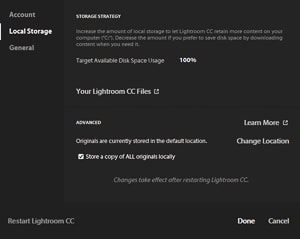
Enable the option to “store a copy of ALL originals locally.” This is in the same settings menu as the location of your files.
-
Back up the folder where you are storing your files. Periodically copy that folder to a separate external hard drive or a RAID system. Even if your primary file storage is on an external hard drive, use a separate one. You want two distinct copies of your files.
- Back up the folder where your presets are stored (see “Organizing Presets,” below).
-
Lightroom CC will take care of your offsite backup. You can check on the status of the uploading by clicking the cloud icon in the upper right.
Stacking
Organizing Presets
-
Click the edit panel on the right side of the screen (it looks like three sliders).
-
Select “Presets” at the bottom of the panel.
-
Click the “…” in the upper right of the presets panel and select “open presets folder.”
-
Double click the User Presets folder, and you are in.
Plan ahead
In the end, I think the best thing that we can all do is try to anticipate how we will need to find our photos in the future. With the ongoing development of Sensei and with the goal of feature parity between Lightroom CC and Lightroom Classic CC, organization in the new Lightroom will likely be ever evolving. We stand on the brink of an exciting, cloud based era. In the meantime, focus on using date based searches, keeping organized albums, and practice searching with Sensei. Keep as much backup as your internet connection and risk aversion require of you. Keep presets organized and backed up. With these tools, you will build a Lightroom workflow that will keep out of your way and allow the tool to be what you need it to be.