Many times, I go out on a shoot and feel like I captured the scene how I wanted it to look but then I get home and look at the photos large on the computer only to realize that the photos didn’t turn out. I think one of the biggest reason for this problem is that the tiny screen on the back of the camera doesn’t give me a good view of the photo as a whole.
About a year ago, I started searching out a way to make the camera wirelessly display my photos on the iPad or my Android phone so that I can view them larger during the shoot. This is also a great technique for professional photographers who want to show Mom the photos on the iPad while shooting photos of their children, for example.
I have developed a really nice workflow for doing this, and MANY MANY of you have asked me to share how I do this. So, Dustin and I hopped into the studio for a quick video tutorial (available at the top of this blog post if you’re viewing this via email).
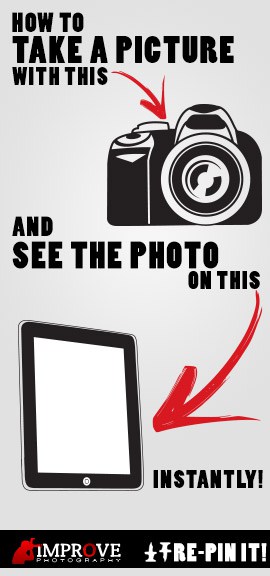
Here’s the step-by-step…
Step 1: Get your gear together. You’ll need a camera that is compatible (virtually any DSLR made in the last 3 years will work) and an eye-fi x2 pro card.
Step 2: Set up the eye-fi card via the computer interface. Your eye-fi card has software available to make these changes. Define the network for when you’re shooting at home or in your studio. Then, set up direct mode to connect 30 seconds after not finding a wifi network. You may also want to configure the eye-fi card to only transmit the small jpegs and not the raw files.
Step 3: Set up your camera to shoot RAW plus small or medium JPEG. This will make the transfer much faster.
Step 4: On your iPad, go into the settings > Wireless > Connect to the router that the eye-fi card is connected to. If you’re working in a place that has no wifi router available (like when you’re outside), simply connect in direct mode to the eye-fi card, which will show up in your wi-fi networks after 30 seconds.
That’s it! You’re ready to connect the iPad wirelessly to your DSLR camera.