If you have used remove.bg in the last few years, you probably didn’t think much about who owned it. You just needed a clean cutout, fast. That is changing a bit, however, after Canva acquired remove.bg’s parent company, Kaleido AI.
A lot of creators are left wondering the same thing: so… is anything actually changing? The short answer is, not really yet, but the longer answer is why so many people are now looking for a backup plan.
What actually happened between Canva and remove.bg
Back in February 2021, Canva announced it was acquiring Kaleido AI, the Austrian company behind remove.bg and Unscreen. It was part of a bigger string of acquisitions Canva has been making to build out its AI tools.

For a long time after, remove.bg stayed live as a standalone site.
However, it has been officially announced that the standalone remove.bg website will shut down on December 1, 2026, migrating its core background removal tech directly into the Canva ecosystem.
Why creators want a dedicated alternative right now
When a simple utility gets fully absorbed into a giant platform like Canva, the whole workflow changes. It’s no longer a quick side tool. It becomes part of a much bigger system, and systems come with extra steps.
If you use remove.bg website for editing photos in your usual day-to-day workflow, you’ll run into the same three problems:
- You’re locked into their workflow. Canva’s background remover only works inside Canva. If you work in Photoshop, Figma, Shopify, or just keep your files in desktop folders, it will slow you down.
- Credits and batch limits. remove.bg has always charged credits for high-res downloads. Canva Pro covers it, but if you’re not on Pro plan or need to process 50 product photos at once, it gets expensive and slow.
- Not enough control. Canva is quick and automatic, great for simple shots. But for tricky edges — flyaway hair, thin jewelry chains, fur, soft shadows — the auto cut often messes up, and you have to export it to another app to clean it anyway.
A good alternative to remove.bg in 2026 isn’t about “does it remove background.” It’s about getting a real full-res transparent PNG, in batches, without being locked into one ecosystem.
12 practical alternatives worth trying
| Tool | Best For | Edge Quality | Batch / API | Pricing Note | Main Limitation |
|---|---|---|---|---|---|
| Designkit | Daily dedicated cutouts | Very good on hair, products, pets | Batch + API, ZIP download | Free tier + affordable paid | Newer brand than Adobe |
| Canva Pro | People already in Canva | Same tech as remove.bg | Batch in editor, no standalone API | Needs Pro plan | Tied to editor |
| Adobe Express | Adobe CC users | Strong on people | Single, inside Express | Free with Adobe account | Wants to keep you in Adobe |
| Photoroom | E-commerce sellers | Good on products, auto-shadow | Batch, API | Free limited, paid from $12.99/mo | Template-heavy |
| Leonardo.Ai API | Developers migrating from remove.bg API | Same family as remove.bg | API only | Credit-based | Not a browser tool |
| ClipMagic | Quick product cutouts | Good, but struggles with hair | Batch | Pay-as-you-go | No manual refine |
| Slazzer | High-volume stores | Decent on people & cars | Batch, API, Shopify plugin | $0.10 per image approx | Credits expire |
| Removal.ai | Simple free removals | Average on fine edges | Batch, API | Free low-res, paid HD | Heavy compression on free |
| Pixlr Remove BG | Casual creators | Average | Single only | Free | No batch, ads |
| Photopea | Privacy / offline-ish work | Manual + AI mix | No batch, one by one | Free | Needs manual work |
| GIMP + rembg (local) | Developers who want local | Varies by model | Local batch via script | Free, open-source | Setup required |
| Fotor | Quick social content | Average | Single | Free with watermark | Upsells a lot |
If you look at that table, a pattern pops up pretty fast. Almost every tool falls into one of two buckets.
Either it’s a solid remover — but it locks you inside its editor. Or it’s a free, quick tool, but it reduces your image size, places a watermark on it, or doesn’t offer batch processing. If you used remove.bg because it was fast, private, and gave you a file you could actually use anywhere, only one tool does that now: Designkit.
Why Designkit is becoming the default for most ex-remove.bg users
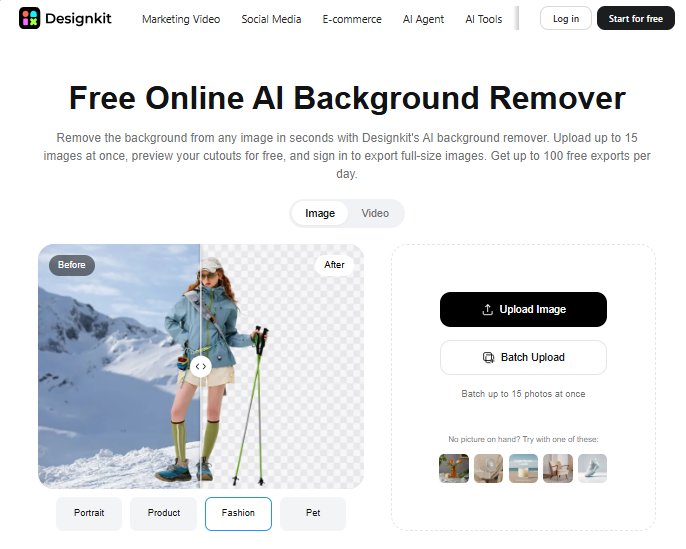
Not everyone wants to use a full design editor like Canva only to remove a background. Designkit is good for that. It offers a standalone background remover, so you don’t have to open a whole design suite for a 5-second task.
Just the remover, nothing else. And when it’s done, you can take that cutout straight to Photoshop, Figma, Canva, whatever you use.
If you freelance for clients, sell stuff online, and keep re-shooting product photos, or make content that needs transparent PNGs everywhere, Designkit is just faster. Way faster.
Here are other reasons that make Designkit worth trying:
- No resolution loss. What you upload is what you get. Unlike some tools, it doesn’t shrink your free result down to 500px.
- Batch that actually works. Drop 20-30 images in one go and download as a ZIP. You don’t have to sit there doing them one at a time.
- Manual fix right there. After the auto cut, there’s an Erase and Restore brush. If it cuts off a strap or leaves the background between fingers, you can fix it right away.
- Flexible export. Want a transparent PNG? White background? Solid color? Or a completely new background? You can do it all from one screen without jumping to another app.
For daily cutouts, that combination is what saves the most time.
A simple Designkit workflow to switch from remove.bg
If you want a 1-to-1 replacement so your process doesn’t break after December 1st, here is how most creators are setting it up. Same habit you had with remove.bg, just in a different tab.
Step 1: Upload
Go to Designkit’s background remover page. You can drag one image or a batch – say, 25 product shots from a shoot. The tool supports JPG, PNG, WebP, and even the new HEIC format from iPhone. So you don’t have to convert anything before uploading.
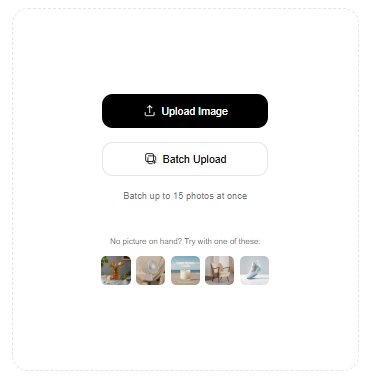
The tool lets you skip the usual setup and go straight to the removal process. You don’t have to choose canvas dimensions or register for an account just to test it. This is handy when you want to see how the background removal works on a photo with tricky lighting.
Step 2: Auto-remove
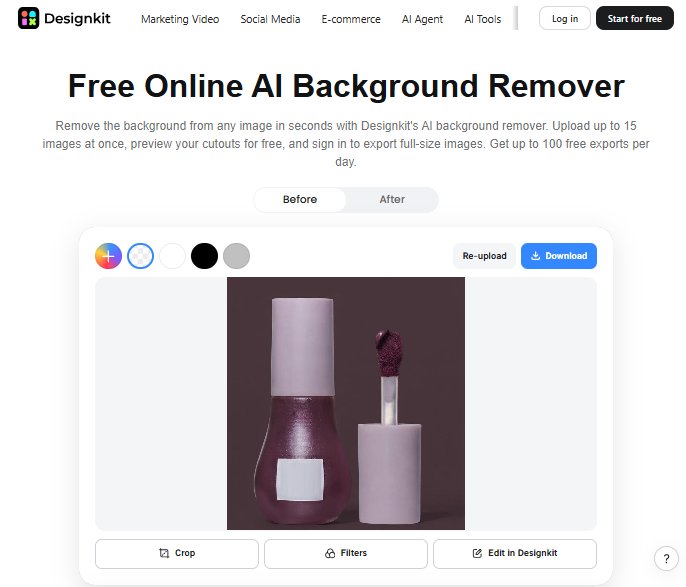
Once you upload an image, Designkit processes it automatically.
The tool usually finishes the job in 2–4 seconds. The editor then shows the original image next to the cutout. This makes it easier to spot anything that looks off.
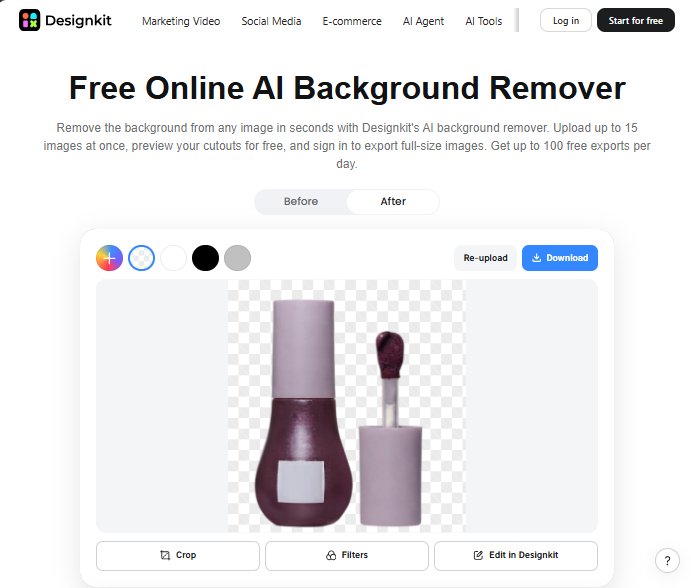
Step 3: Refine if needed
Noticed clipped hair or leftover background between the arm and torso? If you have noticed something that needs attention after the background disappears, use the Erase / Restore brush. Designkit gives this option for quick fixes. You can zoom in to 200% and correct the affected area without having to repeat the entire process.
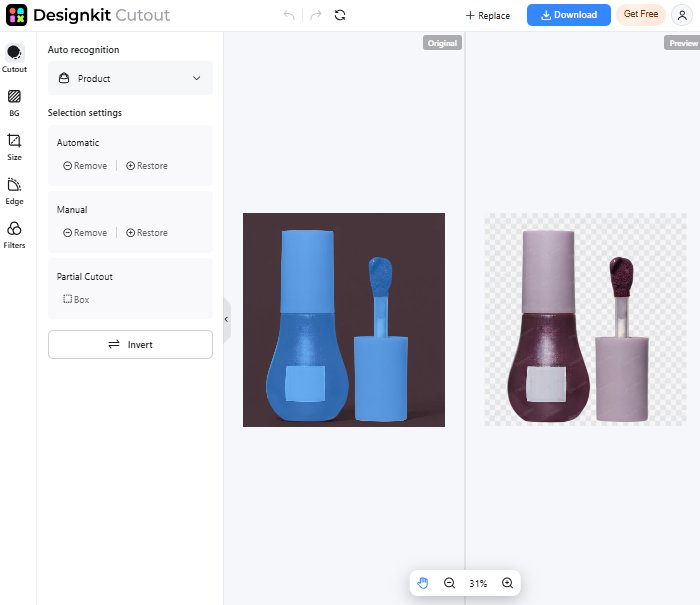
Step 4: Export how you need it
This is the part that is making Designkit background remover popular in the first place. You can download your image for free. No need for paid subscriptions. You can download:
- Transparent PNG (for listings, thumbnails, stickers)
- HD cutout up to original resolution
- With a new background – white, custom color, or your own image
No forced compression on free downloads, and the background stays truly transparent.
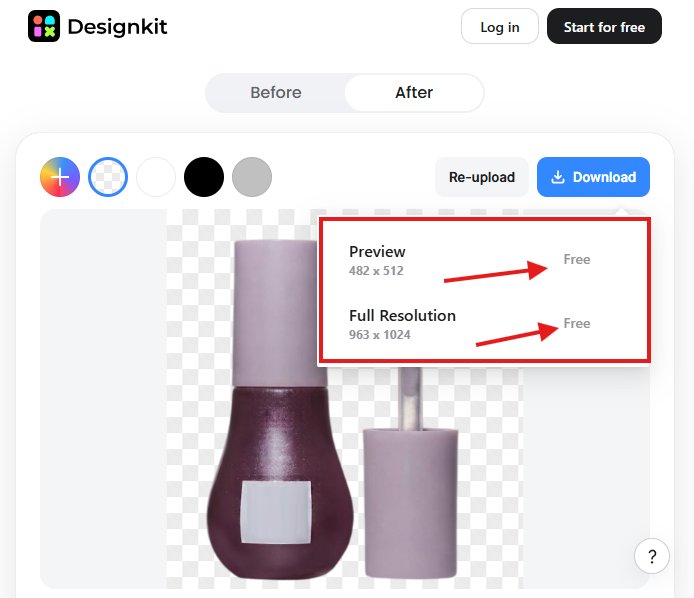
Step 5: Batch and continue
If you uploaded a batch, you can apply the same export settings to all and download as a ZIP. For creators doing 100+ images for a shop update, that ZIP saves an hour of clicking.
That’s it. Open, upload, download, done.
So, should you stop using remove.bg?
You do not have to. remove.bg still works, and if you are a Canva Pro user, it is already included in your workflow.
But if you are a creator who does removal tasks a lot, it makes sense to have one independent tool in your toolkit. Platform acquisitions have a pattern. The standalone product rarely gets worse overnight, but it slowly becomes more valuable to use inside the parent platform.
Having a dedicated remove.bg alternative like Designkit means your product photos, headshots, and social assets do not depend on which suite you are subscribed to this month. You just have a place to get a clean cutout, every time.
Try your hardest image first, the one with messy hair or a reflective product. That test will tell you in 10 seconds which tool is actually good enough to keep bookmarked.
This article was published in partnership with Designkit.