
Physical prints don’t last forever. After years in albums and boxes, photographs collect scratches, stains, and color shifts that hide the faces and places they capture. The old options—paying a lab or mastering complex editors—were expensive or time-consuming, so a lot of people never restored their photos.
PhotoGlory offers a different route. It’s a program for restoring old photos on Windows, combining automated cleanup with manual retouching in an interface that doesn’t demand a degree in design. You can read more or download it from the official website. In this review, we’ll walk through what it can actually fix, how a typical restoration goes, and practical tips to get the most out of the software.
Photo Restoration Use Cases: What the Program Is Built For
Old prints suffer from very specific kinds of wear and fading. PhotoGlory is purpose-built to tackle these issues directly rather than trying to replace a full creative editing suite. The focus is on surface damage, color shifts, loss of detail, and black-and-white colorization.
Surface damage is usually the most visible problem. Cracks, dust, tears, water spots — they show up on almost any print that’s been handled for years. The program has automatic and manual tools for these issues, which means you can clear out small specks in one pass and then switch to a brush for the deeper flaws.
A photo can look worn even with no obvious scratches. Years of fading may leave it yellow or sepia, or give it an odd magenta tint. The dark areas lose their detail, the blacks turn gray, and everything looks a little washed out. With PhotoGlory, you can adjust the contrast, highlights, shadows, and colors to improve the overall balance.
Colorizing black-and-white prints is another feature worth mentioning. The program uses automatic recognition algorithms to identify elements in the scene and apply realistic hues instantly. It handles the heavy lifting instantly while giving you complete freedom to manually adjust individual details for a more polished finish.
Finally, there’s the issue of lost detail. Old scans often look soft or slightly out of focus. PhotoGlory includes sharpening tools that can bring back texture in clothing, hair, and backgrounds without making everything look crunchy.
Step-by-Step Restoration Workflow
Each photograph may be unique, but the approach, which is the most effective, is very similar every time. First, there is surface restoration, then the exposure and color correction, and finally colorization or other creative effects can be considered. Here is how this is done.
Clean Up Scratches and Surface Flaws
Open your scan in PhotoGlory and click the Restore Old Photo button. This runs an automated sweep for dust lines and small spots. It’s quick and does a decent job on minor damage.
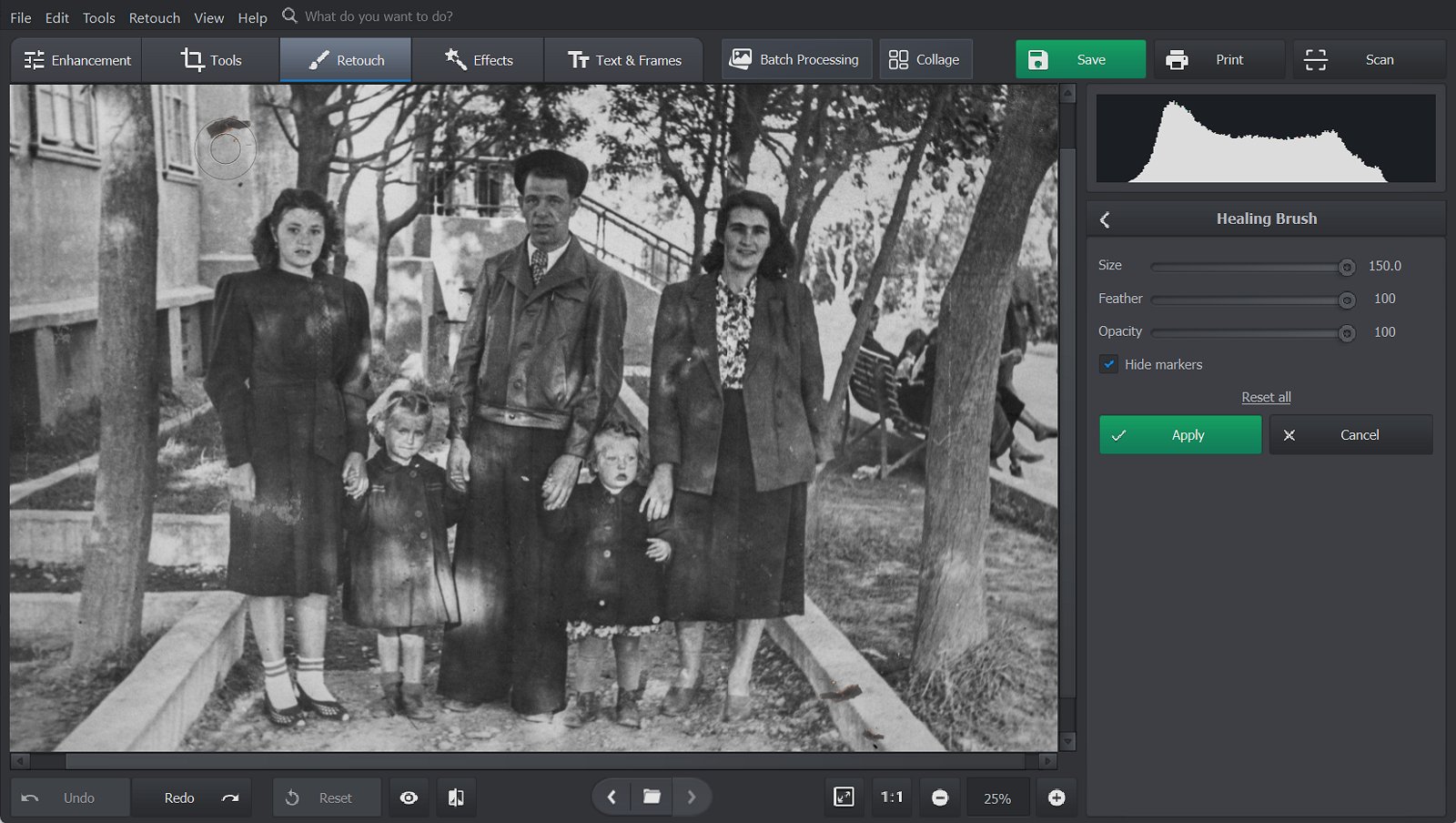
For damage that needs more than a quick cleanup—such as a crease, tear, or missing patch of emulsion—open the Retouch tab and choose the Healing Brush or Patch Tool. Set the brush size, edge softness, and opacity with the Size, Feather, and Opacity sliders, then work over the damaged spot.
Fix Exposure, Contrast, and Color Shifts
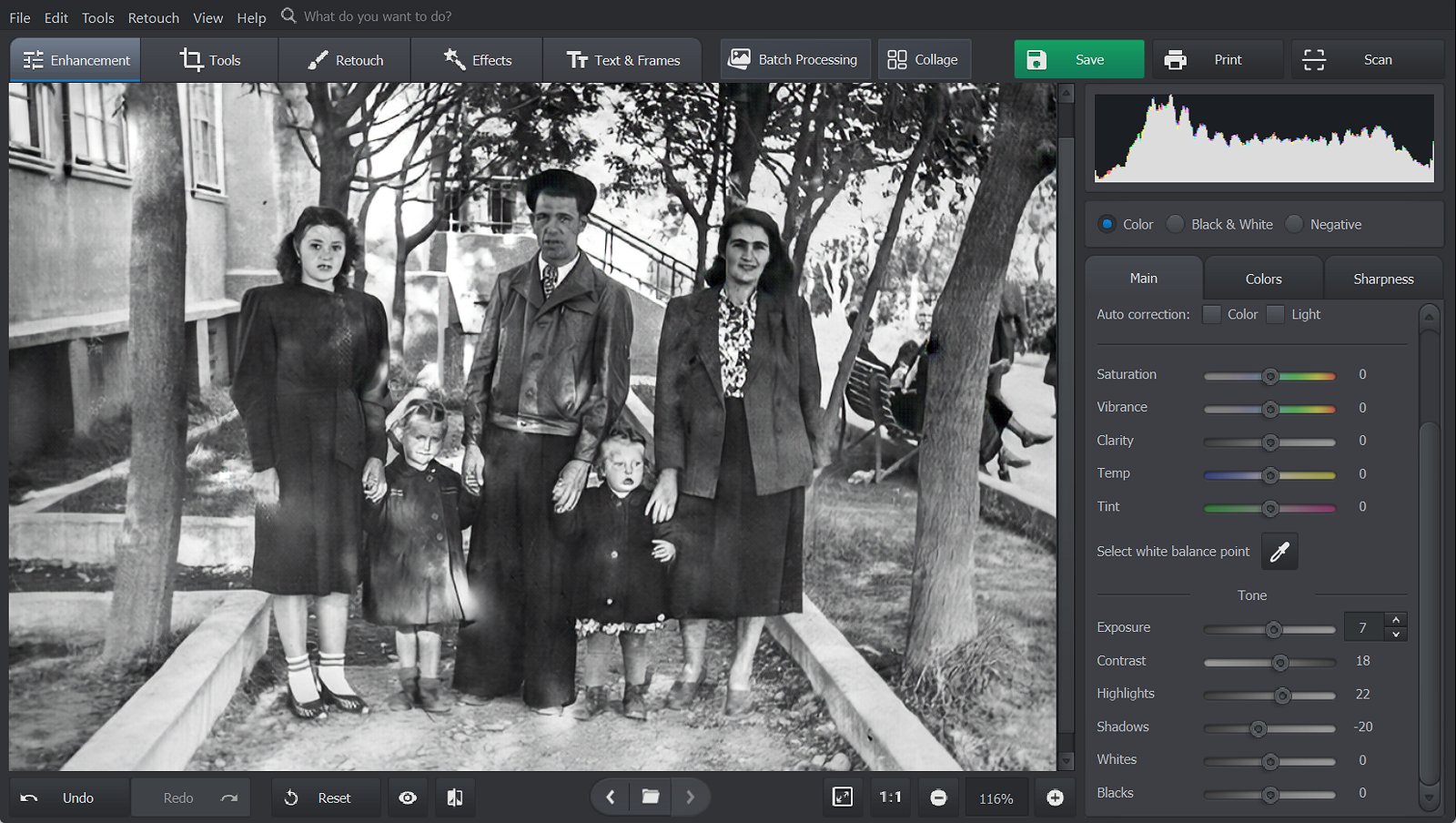
Next, return to the Enhancement tab in the toolbar to tackle washed-out tones. In the Main tab on the right sidebar, adjust Contrast, Highlights, and Shadows until the image gains realistic depth. If there’s a strong color cast—like a brown, yellow, or magenta tint—use the Saturation, Vibrance, Clarity, Temp, and Tint sliders below.
To finish this step, switch to the Sharpness tab in the same sidebar. A subtle boost in sharpness brings out fine details around facial features and clothing—just keep the adjustments light to prevent harsh artifacts.
Colorize Black-and-White Images
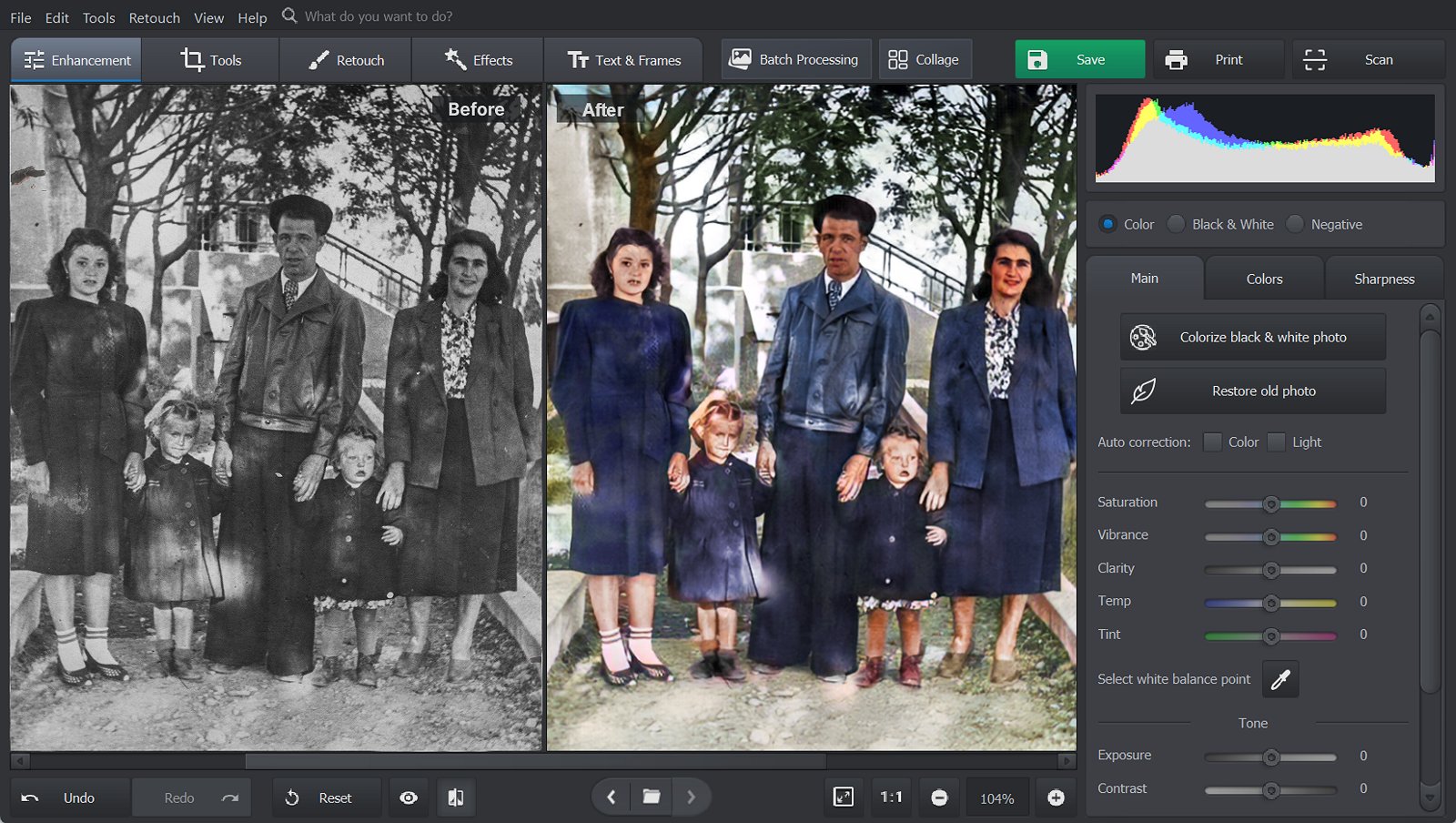
If you’re working with a monochrome or sepia scan, hit Colorize Black&White Photo on the right sidebar. The program analyzes the scene and assigns natural colors based on smart object recognition—accurately identifying skin tones, foliage, skies, and clothing.
The automated step provides a solid base, which you can easily fine-tune manually. To tweak specific hues, head to the Retouch tab and click Coloring. If an outfit, an eye color, or a background detail needs a different shade, simply select your preferred swatch and paint over the area for precise control.
Toolkit Overview: Key Features and Functions
PhotoGlory is built around a fairly simple idea: automate the boring parts, keep the important parts manual. That balance shows in the tools it provides.
One-click restoration sweeps the scan for light scratches and dust specks and helps restore faded contrast. It saves a lot of time on initial cleanup, though it won’t replace careful manual retouching on complex areas.
The manual retouching tools—Clone Stamp, Patch, and Healing Brush—are what you reach for when the damage is in a sensitive area. Faces, patterns, anything where the automatic fix might look off. These tools are straightforward to use and don’t require any advanced knowledge of layers or masks.
Automatic colorization is a nice addition. It uses scene recognition to apply natural colors to black-and-white images, which is especially helpful if you have a large batch to process.
A quick tip: automated features work well on backgrounds, clothing, and uniform textures. But when a deep scratch crosses someone’s eye or mouth, switch to manual brushes. That’s the only way to keep their real expression intact.
There are also Effects and Text&Frames options: 130+ vintage filters, 50+ frames and collages, and 100+ text overlays for adding dates or captions. Moreover, the collage feature lets you organize restored images into side-by-side showcases or simple printable cards right inside the software. These are secondary features, but they’re handy for finishing touches.
A folder full of faded photos can mean a lot of repetitive editing. Batch processing cuts down on that: apply the same base settings to a group of scans, whether you’re correcting the lighting, tint, or colorization. You can save the more detailed retouching for later.
Key Benefits
The interface is genuinely friendly. You don’t need a tutorial to get started, which is rare in photo restoration software. Large, high-resolution scans load and respond quickly, even on mid-range hardware.
Another plus is the pricing model. PhotoGlory uses a one-time purchase, not a subscription. For people restoring a finite collection, that’s a much saner arrangement than paying monthly forever.
The toolset is also well integrated. You can crop, repair, color correct, and colorize in a single program, which eliminates the need to bounce between different apps.
Usage Notes
One small detail to keep in mind is platform support. PhotoGlory is Windows-only, so Mac users are out of luck unless they run a virtual machine or dual boot.
The other thing is that heavily damaged faces still need manual work. The automatic fixes are good, but they won’t reconstruct an eye or a mouth from nothing. You’ll need patience and a steady hand for the worst cases.
In Summary: PhotoGlory’s Place in Photo Restoration
PhotoGlory hits a sweet spot between speed, cost, and control. For family historians, hobbyists, and photographers looking for old photo restoration software for PC without drowning in complexity, it’s a solid choice. For restoring cherished prints, PhotoGlory offers a straightforward way to bring old photos back to life.