
This is a sponsored post. Improve Photography keeps full editorial control over its content.
If you accidentally formatted an SD card before copying your photos, stop using it immediately. Don’t take another shot, record a video, or save anything to the card. New files can overwrite the photos you’re trying to recover.
Losing a portrait session or a day’s worth of travel photos doesn’t always mean those images are gone for good. Depending on how the card was formatted and whether it has been reused, photo recovery software may still find them. This guide explains what to do first and how to attempt recovery on your Mac.
Can You Recover Photos From a Formatted SD Card?
Recovery may be possible if the photo data is still on the card. Basic formatting may replace the file system information while leaving the actual image data intact. If the formatting process didn’t erase or overwrite that data, recovery software may still find JPEG and RAW files even when Finder shows the card as empty.
Your chances depend mainly on what happened during and after formatting:
- The formatting method. A format that overwrites the card’s contents prevents software from recovering the overwritten data. Camera formatting behavior varies by model, so don’t assume every in-camera format leaves photos recoverable.
- Further use of the card. New photos or videos may overwrite some of the previous images. Partial recovery can still be possible if only part of the card was reused.
- The card’s condition. A healthy, readable card is a better candidate for software recovery than one with physical damage or persistent read errors.
Recovered photos may also lose their original filenames and folder structure. Check the images themselves before deciding whether recovery was successful.
What to Do After Accidentally Formatting an SD Card
If the card is physically damaged, repeatedly disconnects, or reports an incorrect capacity, don’t attempt DIY recovery. Stop connecting it and contact a professional data recovery service, especially if it holds the only copies of important photos.
For a card that appears healthy, take these precautions before scanning:
- Remove it from the camera. Turn the camera off first and switch to a spare card if you need to continue shooting. Keep the affected card separate so you don’t reuse it by mistake.
- Check for existing copies. Look through previous imports on your Mac, external backups, cloud storage, and the camera’s second card if you used simultaneous recording. Confirm that you have full-resolution originals, not just previews.
- Avoid changes to the card. Don’t format it again or run Disk Utility’s First Aid before recovery. If macOS asks to initialize the card, dismiss the prompt.
- Prepare a separate destination. Make room on your Mac or an external drive for recovered photos. Never save them back to the source card.
For additional protection, you can create a byte-to-byte image of a healthy, readable card and scan that image with compatible recovery software.
How to Recover a Formatted SD Card on Mac
To recover a formatted SD card on Mac, choose software that supports your camera’s photo formats and lets you preview files before paying. For SD card data recovery for photographers, support for the specific RAW format matters more than a long list of unrelated features. This comparison of the best data recovery software for Mac can help you narrow down the options.
The walkthrough below uses Disk Drill for Mac. It supports JPEG and RAW formats from various cameras, including Canon CR2, Nikon NEF, and Sony ARW. It also includes the byte-to-byte backup feature mentioned above, so you can create an image of your SD card and scan that copy instead of repeatedly scanning the original.
Disk Drill offers free scanning and previews, but recovering unprotected files from a formatted card generally requires a paid license. Check whether your photos can be previewed before purchasing.
Step 1: Install Disk Drill and Connect the Card
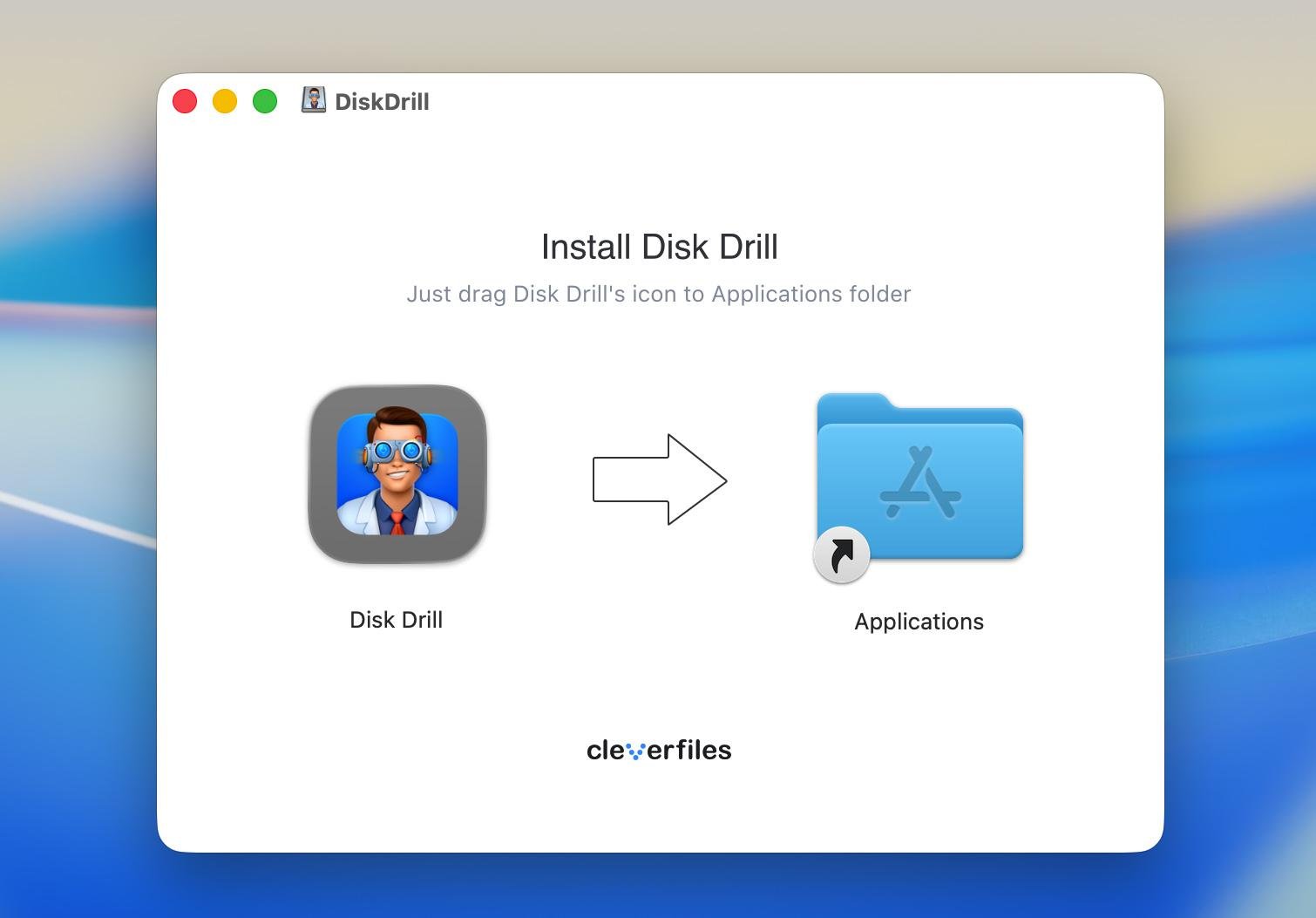
Download Disk Drill from the official website and install it on your Mac. Connect the SD card through a compatible card reader or your Mac’s built-in SD slot. A reader gives the software direct access to the card, which connecting the camera by USB may not provide.
Open Disk Drill and follow any prompts to grant the permissions it needs to access storage devices.
Step 2: Select the Card and Start Scanning
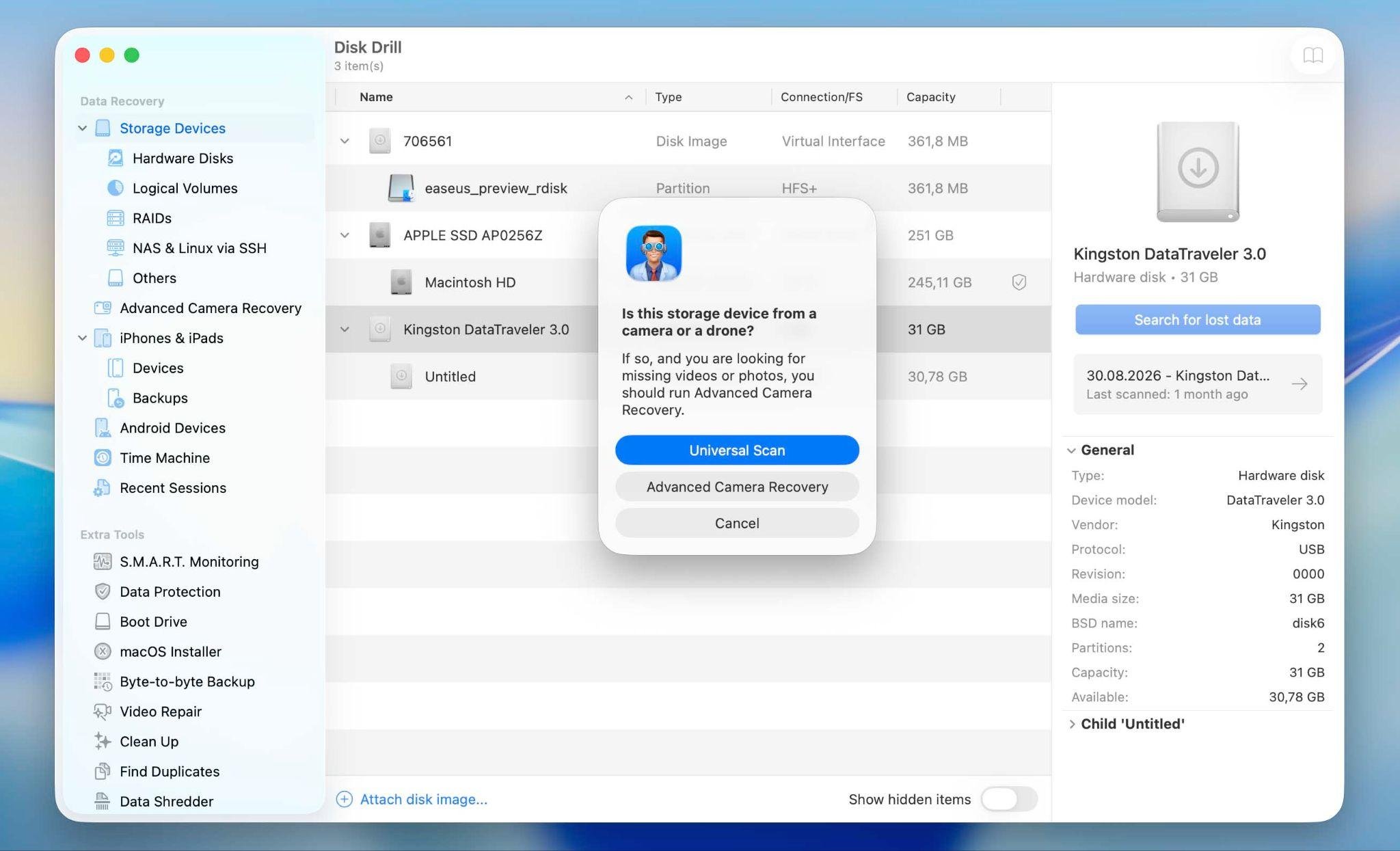
Find the card in the device list, checking its name and capacity carefully. Select the physical card rather than only the volume beneath it, particularly if the original partition is missing.
Click Search for lost data and select Advanced Camera Recovery when prompted to choose a scan method. This mode supports recovery from formatted camera cards, including JPEG and supported RAW photos. Select your camera brand or model to help guide the scan. Let the scan finish before reviewing the results.
Step 3: Review and Preview Your Photos
Click Review found items, then select Pictures to narrow the results. You can also search by file extension to locate your camera’s JPEG or RAW files.
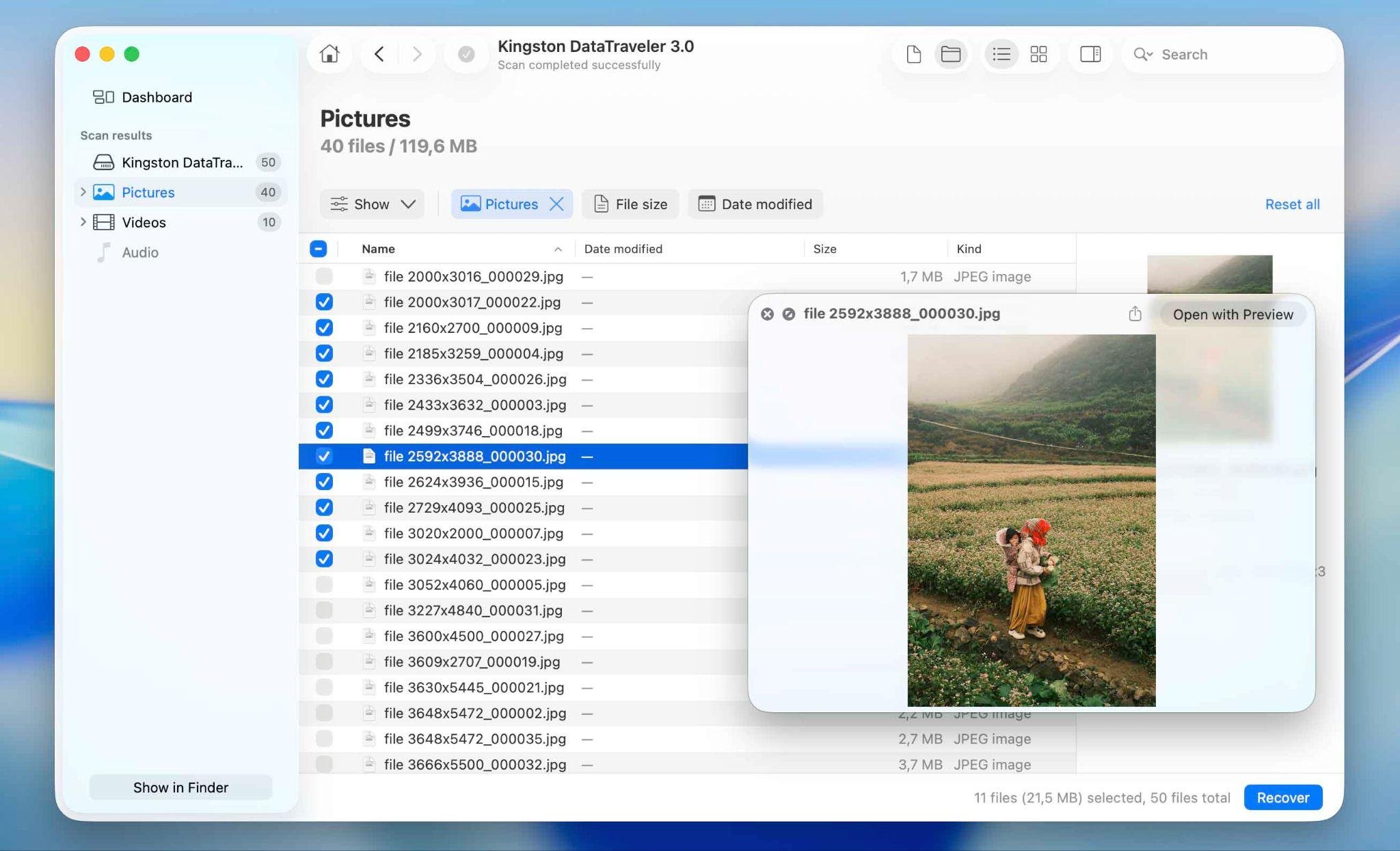
Open previews of the images you need and mark them for recovery. Look beyond filenames: photos found through file signatures may appear with generated names instead of their original camera filenames. A recognizable preview is useful evidence, but you should still verify the recovered originals afterward.
Step 4: Recover to Another Drive and Check the Files
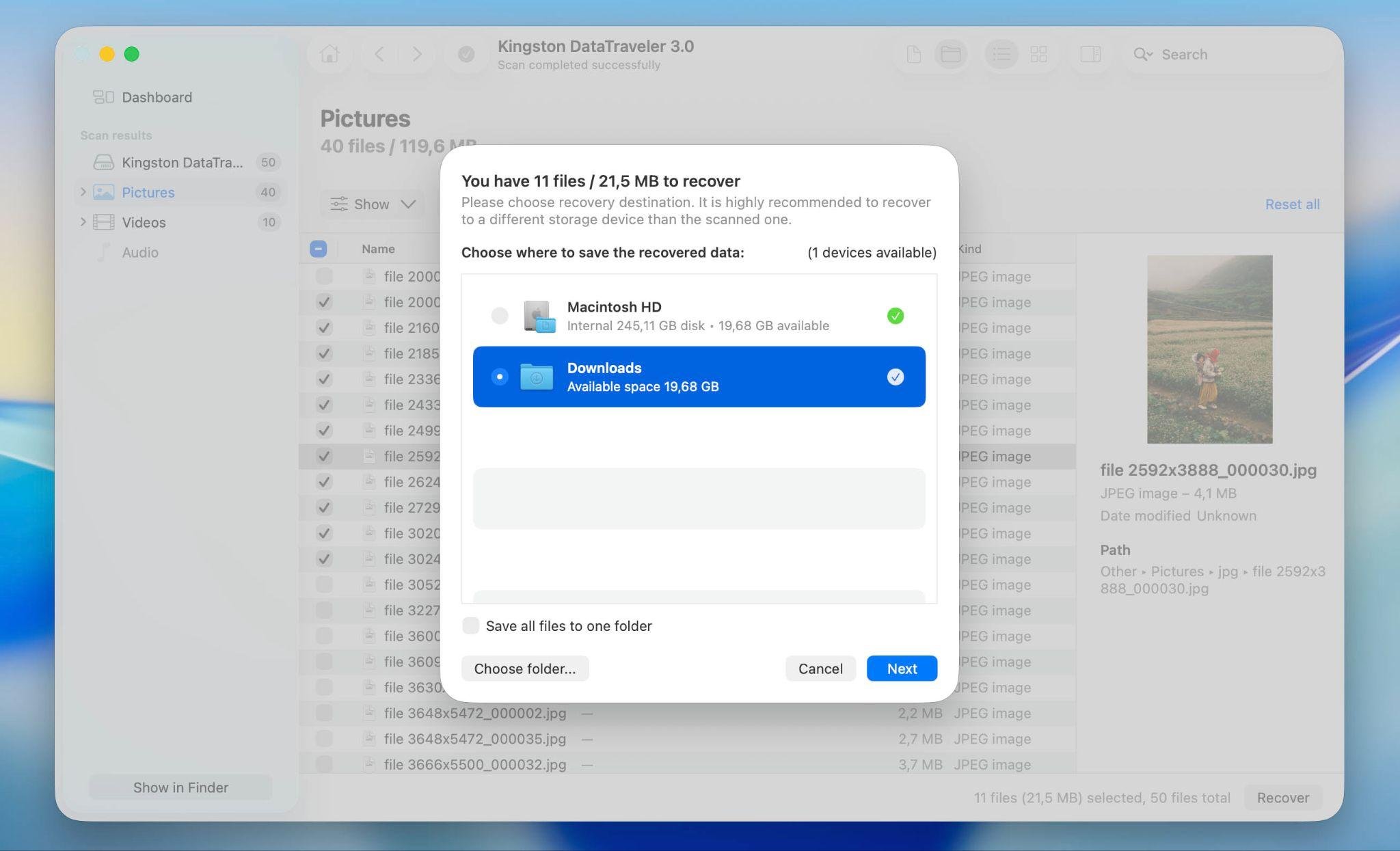
Click Recover and choose a folder on your Mac or a separate external drive. Never select the source SD card as the destination.
Once recovery finishes, open the photos in your usual viewer or editing software. For RAW files, confirm that the originals load correctly, rather than relying only on embedded previews. Check image dimensions and inspect important shots for missing areas or corruption. Back up the recovered files before considering the card ready for reuse.
How to Recover Deleted Files From an SD Card on Mac
If you need to recover deleted files from SD card on Mac, you may have a few more options than after formatting. If your camera supports dual-card recording and you used this feature, check the second SD card for another copy. Also check camera transfer apps such as Nikon SnapBridge, Canon Camera Connect, Sony Creators’ App, or Fujifilm XApp, as some photos may already have been transferred to your phone or tablet.
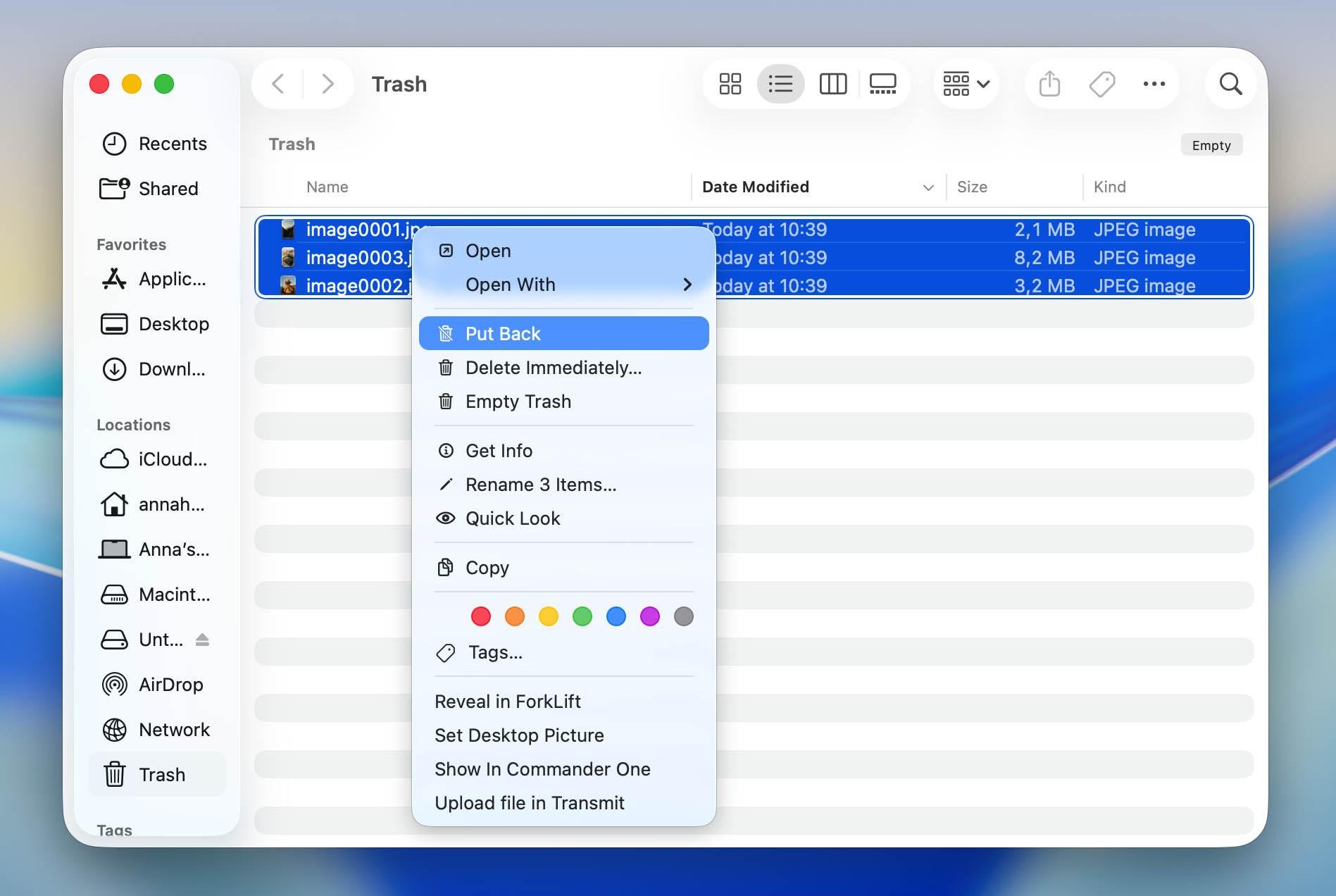
If you deleted the files while the SD card was connected to your Mac, check the Trash. Files removed through Finder may remain there until you empty it. If you find them, you can restore them from the Trash using File > Put Back. Photos deleted directly in the camera won’t appear there.
If the Trash is empty, check your backups. Otherwise, follow the data recovery software steps above for a formatted SD card. Stop using the card and recover the files to another drive. Recovery is possible only while the deleted data hasn’t been overwritten.
How Photographers Can Prevent Photo Loss
A reliable import and backup routine reduces the risk of formatting the only copy of a shoot. Before clearing a card, make these checks part of your workflow:
- Verify the import. Confirm that all expected files reached your Mac, including both JPEG and RAW files if you shoot in both formats. Open several originals in your editor and check that images from the beginning and end of the session are present.
- Keep separate backups. Aim for three copies of important shoots across two types of storage, with one copy off-site. A second folder on the same Mac won’t protect against drive failure. For photos stored on your Mac, you can set up automatic backups with Time Machine to an external drive.
- Use dual-card recording when available. Set the camera to save each image to both cards. An overflow setting, which switches cards when one fills up, doesn’t create a duplicate.
- Separate used cards from ready-to-use cards. Keep cards awaiting backup in a marked case or compartment. Format a card only after confirming that its photos have been copied and backed up.
FAQ
Can photos be recovered after formatting an SD card?
Yes, if the photo data hasn’t been overwritten or erased by the formatting process. An empty card in Finder doesn’t necessarily mean the images are unrecoverable. Scanning with recovery software can reveal what remains, but no tool can guarantee that every photo will come back intact.
Can I recover RAW files from a formatted SD card on Mac?
Yes, provided the data remains readable and the recovery software supports your camera’s RAW format. Check support for the specific file extension, such as CR3, NEF, or ARW. After recovery, open the files in a compatible RAW editor to confirm that the full images load correctly, not just their embedded JPEG previews.
Should I format the SD card again before recovery?
No. Formatting again won’t bring your photos back and may remove information useful for recovery. If your Mac prompts you to initialize the card, dismiss the message. Recover your files and verify separate backups before formatting it for reuse.
Conclusion
An accidentally formatted SD card doesn’t always mean a lost shoot. Stop using the card, check for existing copies, and use recovery software only if the card is healthy and readable. Preview the photos before paying, save recovered files to another drive, and verify the originals in your editor. If the card shows signs of physical damage or instability, contact a professional recovery service. Acting promptly means preventing further writes, not rushing into repeated scans.