This is a sponsored post. Improve Photography keeps full editorial control over its content.
You paid good money for a drone. Five small edits are what make the pictures look like it.
Whether it cost you $500 or $2,000, the first flight is a thrill. Then you pull the files onto your computer and they look… fine. The sky is pale, the horizon tilts a bit, the colors are flat, and the edges of the frame bow outward. Next to the aerial shots you see from working pros, yours look like screenshots from a security camera.
The good news is that the drone usually isn’t to blame. Drone cameras use small sensors and wide lenses, and they shoot through hundreds of feet of air. That causes the same five problems again and again, and every one of them takes about a minute to fix. Below are those five problems, why they happen, and the exact edit for each. Get through all five and you’ve spent about five minutes per image.
Before you edit: three drone photography tips that make the fix easier
- Shoot RAW (DNG). JPEGs from drones are already heavily processed. RAW files give you the room to pull detail back out of haze and shadows.
- Turn on AEB (bracketing) for high-contrast scenes. Three exposures merged into an HDR in Lightroom solve a lot of sky-versus-ground problems before they start.
- Calibrate your gimbal and IMU when you notice a tilt. It won’t fix every crooked horizon, but it takes care of the steady, repeatable ones.
Problem 1: Hazy, washed-out skies
From 300 feet up you’re shooting through a lot more air than you are on the ground, and that air holds moisture, dust, and pollution. All of it scatters light, so distant hills turn gray-blue and the sky fades toward white. A small sensor makes it worse by losing contrast in the midtones.
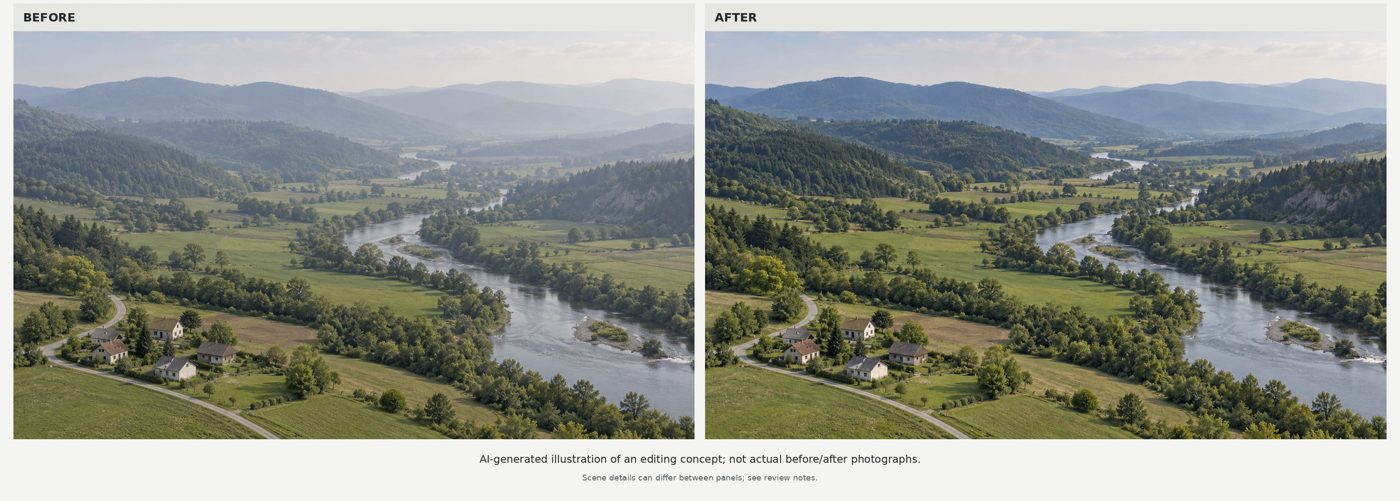
The fix: targeted haze removal (about 60 seconds)
- In Lightroom’s Basic panel, set Dehaze to between +10 and +25 for the whole image.
- Open Masking → Select Sky and add another +10 to +20 of Dehaze to just the sky, plus a small drop in Highlights (around −20).
- Pull Blacks down a few points to give the image a solid base, then raise Vibrance (not Saturation) by about +10.
Watch the corners. Too much Dehaze makes a dark, muddy vignette and turns blue skies an odd navy. If the sky starts to look heavy, ease off the global slider and let the sky mask do the work. At capture time, a circular polarizer or a polarized ND filter cuts a lot of haze before you ever open Lightroom.
Problem 2: Crooked horizons
Nothing marks an aerial shot as amateur faster than a sea or skyline that runs downhill. Gimbals drift, wind pushes the aircraft, and an IMU that’s slightly off can add a steady tilt to a whole flight. People usually notice it before they notice anything else in the picture.
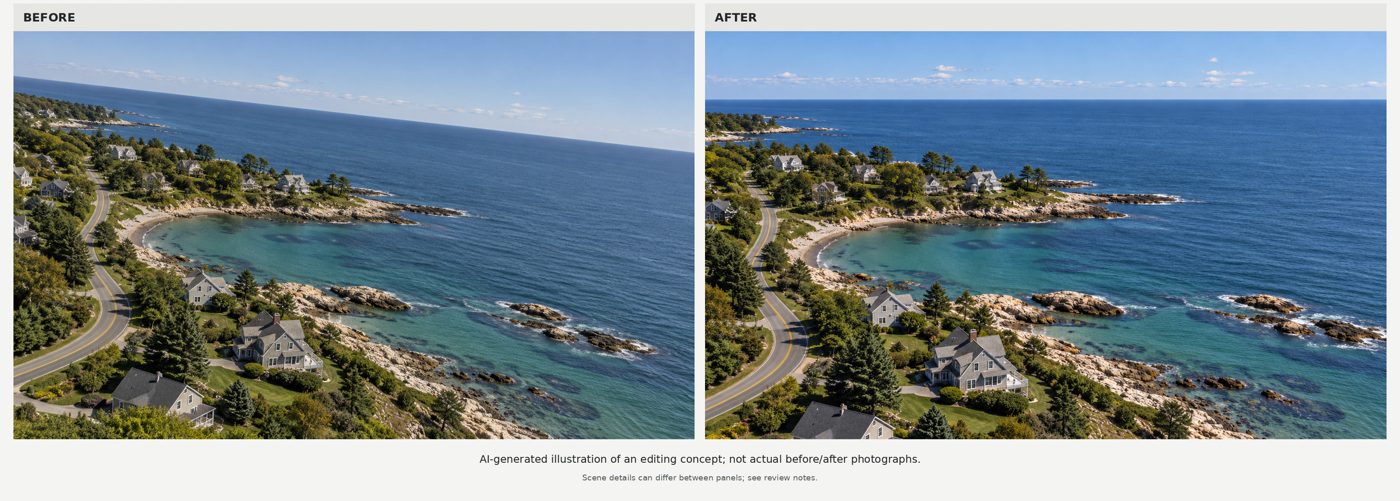
The fix: horizon correction (about 30 seconds)
- Press R for the Crop tool, choose the Straighten tool (the level icon), and drag a line along the true horizon.
- If there’s no clear horizon, as in a top-down shot or a hillside, straighten against a long, straight feature like a road, fence line, or roof edge.
- Turn on the grid overlay (press O to cycle through overlays) and check the result against a vertical structure.
If the horizon looks curved rather than tilted, that’s lens distortion, not a crooked gimbal. Skip to Problem 4, fix the distortion first, then come back and straighten.
Problem 3: Flat midday light
Real estate shoots and road-trip flights tend to happen at noon, which is the worst light for aerials. With the sun directly overhead, shadows are short and everything gets the same even light. Roofs, lawns, and pavement blur into one middle tone, and the image loses all sense of depth.
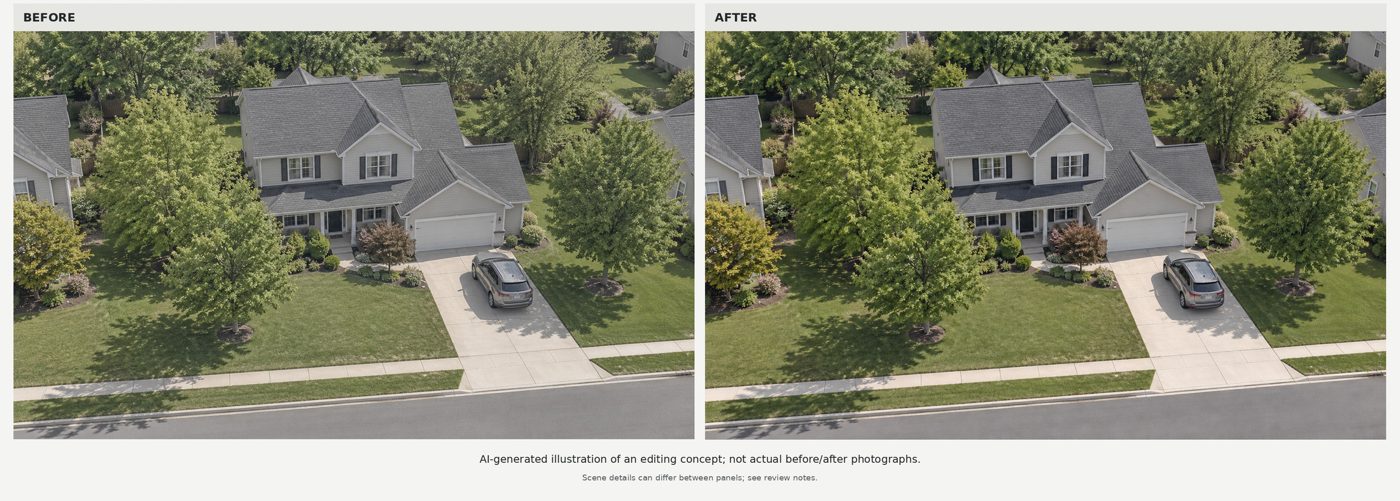
The fix: rebuild depth (about 90 seconds)
- In the Tone Curve, add a gentle S-curve: lower the shadows a little and lift the highlights a little.
- Add Texture +15 and Clarity +10. Texture brings out shingles, gravel, and grass without the crunchy halos that heavy Clarity leaves.
- Use Masking → Select Subject or a radial gradient over the main subject and raise exposure by +0.2 to +0.3, so it’s the brightest thing in the frame.
- Darken the frame edges with a few linear gradients (around −0.3 exposure) to lead the eye inward.
Don’t try to fake golden hour with a heavy orange grade. A small warm push in Color Grading highlights is enough. Anything more looks wrong once someone notices that the shadows point straight down.
Problem 4: Barrel distortion
Most consumer drones use a lens around 24mm full-frame equivalent. That’s wide enough to cause barrel distortion, where straight lines near the edges of the frame bow outward. In a landscape you might never notice it. In a shot of a house, a parking lot, or a city grid, roads curve, roof lines bend, and the building at the edge of the frame looks like it’s leaning back.
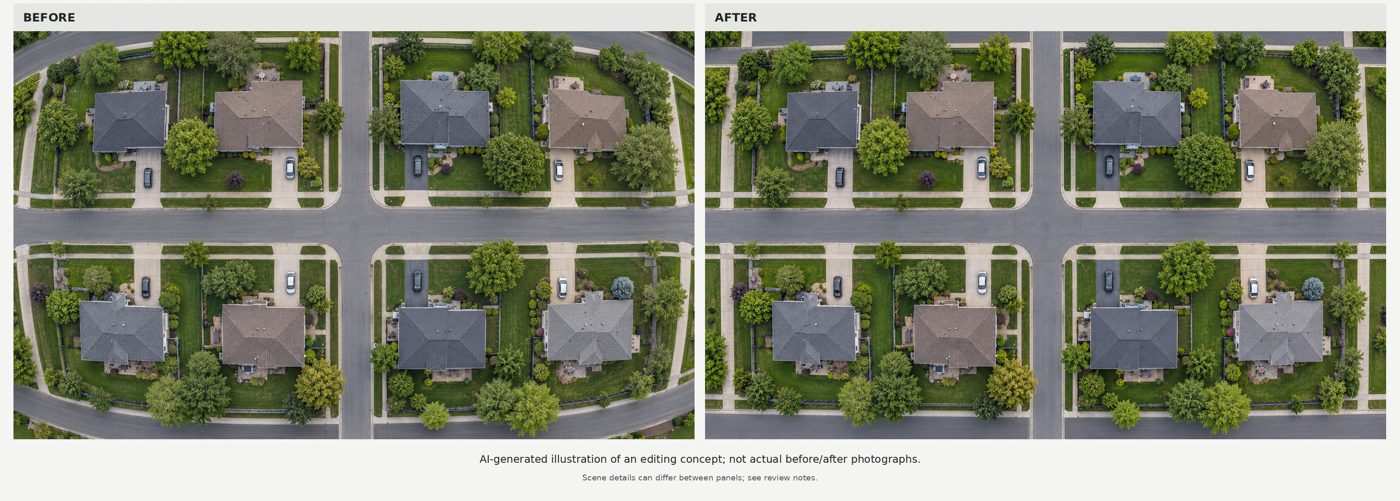
The fix: lens and perspective correction (about 30 seconds)
- In the Lens Corrections panel, check Enable Profile Corrections and Remove Chromatic Aberration. Lightroom includes profiles for many DJI cameras, and many DJI DNGs carry built-in correction data.
- If there’s no profile for your drone, switch to Manual and move Distortion to the right until edge lines run straight.
- For oblique shots of buildings, open Transform and try Upright: Vertical to straighten walls that lean, then check Constrain Crop to hide the blank edges.
Do this step first in your actual workflow. Correcting distortion changes the shape of the frame, so straightening and cropping before it means doing them twice.
Problem 5: Property lines that don’t stand out
From 200 feet up, one half-acre lot looks a lot like the half-acre lots on either side. For anyone shooting real estate, land listings, or a client’s new farm, that’s a problem: the viewer can’t tell what’s being shown. The photo can be beautifully exposed and still fail at its one job.
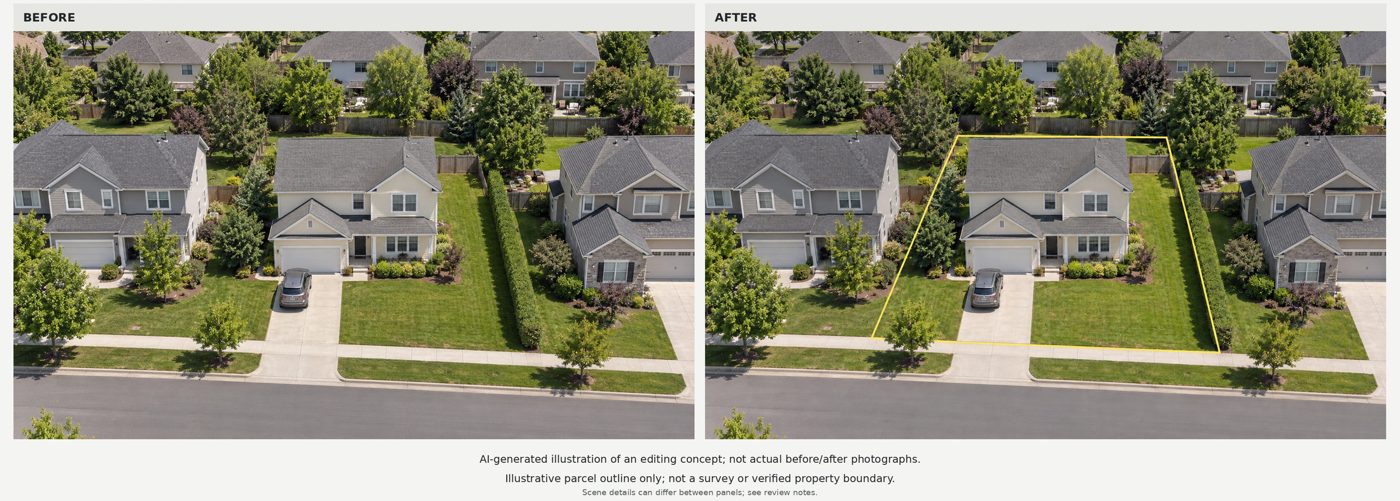
The fix: property boundary outlines (about 90 seconds)
- Pull up the parcel on your county’s GIS or plat map viewer and keep it open next to the photo as a reference.
- In Photoshop, make a new layer and trace the boundary with the Pen tool, clicking on fence posts, driveway edges, and tree lines that match the plat.
- Right-click the path, choose Stroke Path, and use a 4–8 px brush in white or a bright yellow. Add a soft drop shadow so the line holds up against both grass and pavement.
- Optional: Ctrl/Cmd-click the path to load it as a selection, invert it, and drop exposure on the surroundings by about a third of a stop.
Always label the image “boundary lines approximate,” and check your local MLS rules on overlays before you publish. Outlines show where the lot is, not where it legally ends.
This is also the step that takes the longest at volume. Tracing one lot is quick. Tracing forty listings a week, plus sky swaps and color matching across a batch, is a part-time job. That’s why many agents and aerial operators hand the outlines off to a service that does drone image editing for real estate aerial photography, so they can spend their time flying instead of at the desk. (In the U.S., any paid real estate flight also requires an FAA Part 107 certificate.)
The 5-minute aerial photo editing workflow
The problems above are listed in the order you’ll notice them. Here’s the order you should edit them in:
| Step | Fix | Where | Time |
|---|---|---|---|
| 1 | Barrel distortion | Lens Corrections → Profile | 0:30 |
| 2 | Horizon correction | Crop → Straighten | 0:30 |
| 3 | Haze removal | Basic → Dehaze + Select Sky mask | 1:00 |
| 4 | Flat light | Tone Curve, Texture, subject mask | 1:30 |
| 5 | Property outlines (if needed) | Photoshop → Pen + Stroke Path | 1:30 |
Once you’ve done steps 1–4 on one image, save them as a preset. Lens and tone settings carry well across a whole flight, so you can sync them to the rest of the batch and only fine-tune masks image by image.
Four mistakes that undo the edit
- Too much Dehaze. If the sky has gone navy and the corners are dark, you’ve pushed past “clear” into “fake.”
- Sky swaps that don’t match the light. A dramatic sunset sky over a scene with noon shadows gives the swap away immediately.
- Neon grass. Lawns are the first thing to go radioactive when you raise saturation. Pull Green saturation down a few points in the HSL panel.
- Over-cropping after straightening. Straightening costs you some frame. Leave room when you shoot so you aren’t forced into a cramped crop.
Protect your drone investment
A drone’s camera is only half the system. The other half is the five minutes you spend at the computer afterward. Clear the haze, level the horizon, rebuild the contrast, straighten the edges, and show viewers what they’re meant to look at. Do that consistently and your aerials will hold up next to the work from people who have been flying much longer than you have.
Pick your best flight from the past month, run one frame through these five steps, and compare it with the original. That comparison usually makes the case on its own.