
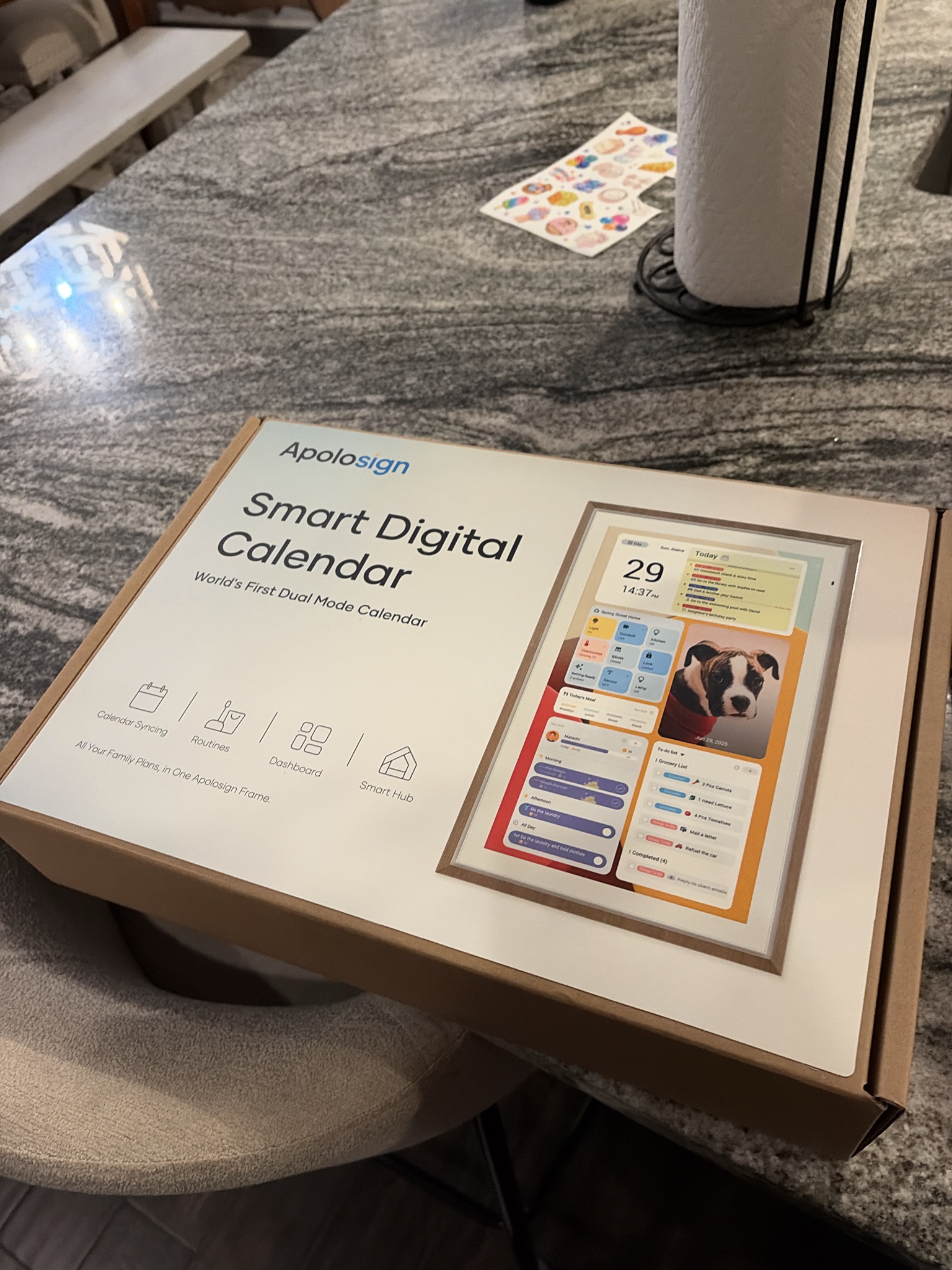
Most of the gear we review on Improve Photography helps you take pictures. This one is about where your pictures end up. The Apolosign 15.6″ Digital Calendar is a touchscreen family calendar that hangs on the wall (or sits on a counter), keeps everyone’s schedule in one place, and turns into a photo frame when nobody is using it.
That last part is why I wanted to look at it. Plenty of us have thousands of family photos sitting on a phone or a hard drive, and a screen in the kitchen that cycles through them is one of the few ways those pictures actually get seen. The question is whether a calendar can also be a good place to show photos, or whether the photo frame is just a checkbox feature.
To get a fuller picture than one household can give, I also went through the professional reviews, the YouTube walkthroughs, the Reddit threads, and a lot of Amazon and app store reviews. Where something comes from other owners, I’ll say so.
What the Apolosign calendar is
At its core, this is a 15.6-inch Android touchscreen in a picture-frame style housing. Apolosign calls it the “world’s first dual-mode digital calendar,” and that dual mode is the main thing that sets it apart from calendars like Skylight:
- Calendar Mode is Apolosign’s own family organizer. You get a shared calendar, routines and chores with points and rewards, to-do and grocery lists, meal planning, and “Stickies” for reminders and countdowns.
- Android Mode turns the screen into a dashboard you build yourself with widgets, plus the Google Play Store, Google Assistant and Gemini, and Google Home controls for things like doorbells and cameras.
The other big selling point is money. There is no subscription. Apolosign’s FAQ says the calendar, chores, rewards, to-dos, and the photo screensaver are all free. That matters, because the most popular competitor puts its photo screensaver behind a paid plan. One reviewer did note that Apolosign has started offering some newer AI extras as an optional paid add-on, so “free” applies to the core features rather than every feature forever.
The 15.6-inch model is the smallest in the lineup. There are also 21.5-inch, 27-inch, and 27-inch 4K versions. The 15.6-inch is the only size that ships with a desk stand as well as a wall bracket.
Specs
| Screen | 15.6-inch LCD, 10-point touch, anti-glare matte glass |
| Resolution | 1920 x 1080 (1080p), 16:9 |
| Brightness / contrast | 300 nits / 1000:1 (Apolosign’s ratings) |
| Processor / memory | Rockchip RK3576 octa-core, 4GB RAM, 64GB storage |
| Software | Android (Google EDLA licensed) with Calendar Mode and Android Mode |
| Connectivity | Wi-Fi 6, Bluetooth 5.4, one USB-C port |
| Audio | Two 3W speakers, four microphones |
| Other | Light sensor for auto brightness, auto-rotation, VESA 100 x 100 mm |
| Size | About 15.8 x 9.9 x 1.2 inches |
| In the box | Wall mount bracket, desk stand, power adapter, manual |
| Colors | Teak Yellow, Spruce Grey, Black, White |
| Subscription | None for core features |
| Warranty | 1 year |
| Price | $279 on sale at Apolosign ($349 list); around $270 on Amazon as of this writing |
Setup
Setup follows the usual Android pattern. You connect to Wi-Fi, sign in with a Google account, and then choose Calendar Mode or Android Mode. After that you install the Apolosign phone app, scan a QR code on the screen, and create a family group. Calendars get added from the phone app, and each family member can have their own login.
I really loved the calendar sync. Everyone’s calendars (Google, Apple, and Outlook) show up together in one place on the wall, so I can see the whole household’s week without flipping through a bunch of phone apps.
I also loved that it runs full Android with the Play Store, so it isn’t locked into one app. I can install the apps I already use, including Google Photos, and use it as a big touchscreen or a dashboard whenever I want more than the built-in calendar.
Two tips come up again and again from people who have already done this. First, set it up flat on a table before you put it on the wall. You will be tapping through settings for a while, and it is a lot easier at desk height. Second, decide on portrait or landscape before you drill any holes. The screen rotates automatically, and both orientations work, but the wall bracket and the side buttons end up in different places. Scott Thomas makes both points in his YouTube walkthrough. He also points out that the wall mount uses magnets to guide the calendar onto the bracket.
Not everyone finds it smooth. WIRED’s reviewers called it “not very intuitive” and said it takes some patience to set up. HighTechDad, who reviewed this same 15.6-inch model, had spotty Wi-Fi at first and had to restart it until he sorted out his router and updated the apps. After that, it settled down.
Calendar features
The calendar pulls in Google, Outlook, iCloud, Yahoo, and Cozi calendars, and color-codes events by person. Google Calendar supports two-way sync, according to Apolosign’s support docs. iCloud is the weak spot. Apple calendars are imported as a shared calendar, so edits only go one way, and both WIRED and Reddit users mention this. If your house runs on iPhones, plan on adding events from your phone rather than from the wall. HighTechDad, an iPhone household, said his events typically showed up on the wall within about 15 minutes.
Beyond the calendar itself:
- Routines and rewards. This is the feature parents talk about most. Kids earn points for chores and spend them on rewards you set up. One Amazon reviewer with four kids even mentions a customizable prize wheel.
- Lists and meals. There are shared grocery and to-do lists, and meal planning with AI recipe import. One detailed Reddit comparison found the meal planner clunky because every meal needs a recipe behind it, so you can’t just type “grilled cheese.”
- Privacy cover. One swipe hides your schedule behind a photo when guests come over. Gadget Flow’s reviewer said it was the feature they didn’t expect to use and now reach for regularly.
- Voice. Google Assistant and Gemini are there, but only in Android Mode. Calendar Mode has no voice control, and WIRED said they couldn’t get Assistant working.
Photo frame mode: how good do your photos look?
This is the part photographers will care about most. When the calendar sits idle, it can switch to a screensaver that shows your photos, on their own or with a clock or the calendar on top. It can pull from Google Photos, and the “live screensaver” can also play your own short videos. You set how long it waits before switching to photos, and sleep mode turns the screen off overnight.
Resolution. A 1920 x 1080 panel at 15.6 inches works out to about 141 pixels per inch. That is roughly laptop territory. Viewed from across a kitchen, photos look clean, and you won’t see pixels at normal viewing distance. It isn’t a print, though, and you won’t get the fine detail of a high-density phone screen if you walk right up to it. If sharpness matters a lot to you, the 27-inch 4K model is the one with real extra resolution. The 21.5-inch and 27-inch standard models are still 1080p, just bigger, so they are actually softer up close.
The matte screen. Apolosign uses an anti-glare matte finish, and it’s probably the hardware feature owners praise most. Gadget Flow found it stayed readable in a room with windows. A Redditor who compared Apolosign, Everblog, Cozyla, and Skylight noted that Apolosign “was the only brand where reviews praised the image quality.” The trade-off with any matte finish is that it scatters a little light, so blacks and saturated colors don’t pop quite like they do on a glossy phone screen. For a screen that hangs across from a window, I’d make that trade every time.
Brightness. Apolosign rates it at 300 nits, which is fine indoors and close to a typical laptop. Nobody has published an independent brightness measurement that I could find. The light sensor adjusts brightness automatically, which helps keep photos from glowing like a TV in a dim room at night.
What I love most once it’s on the wall is seeing photos from my whole family cycle through. It just brightens up my day.
Aspect ratio and cropping. This is the one to plan around. The screen is 16:9. Most cameras shoot 3:2 and most phones shoot 4:3, so nearly every photo has to be cropped or letterboxed to fit. Owners on the app store say portrait photos on a landscape-mounted calendar get cropped at the top and bottom to fill the width, with no option to change that. Others have asked for a way to pick one specific Google Photos album rather than a broader library. My advice as a photographer is the same advice I give for any frame:
- Make a dedicated album for the frame, so it isn’t pulling screenshots and receipts.
- If you care how a shot is framed, crop it to 16:9 yourself before it goes in. That way you decide what gets cut, not the software. 1920 x 1080 is all the screen can show, so there’s no benefit to sending bigger files.
- If most of your favorite shots are vertical, consider mounting it in portrait. The calendar works in both orientations, and portrait shows more of a week at a time.
Viewing angles. Apolosign doesn’t list a viewing angle for the calendar. In a kitchen, where you mostly see the screen from the side while walking past, that’s worth checking in person.
Bottom line on photos: as a calendar that shows photos in its downtime, it’s genuinely good, and owners like the screen. As a dedicated photo frame, a purpose-built frame gives you more control over albums and cropping. Apolosign makes its own frames for that.
What owners love
- No subscription. This is the most common reason people give for buying it, on Reddit and on Amazon. As one Redditor put it, “I’ll pay a little more upfront to not pay monthly.”
- Kids actually do the chores. Points and rewards come up constantly. Parents say kids remember tasks without being nagged.
- Android flexibility. People run YouTube, Spotify, Pinterest, and live security camera feeds on it. One Amazon owner set up a “parent side” in Android Mode and left the kids on the simple calendar.
- The screen. The matte, anti-glare finish and image quality get consistent praise.
- Build quality. Trustpilot reviewers mention a solid feel and a well-designed mount. One Amazon owner said it survived getting knocked off a four-foot shelf by a six-year-old.
- Stand and bracket included. On the 15.6-inch model you get both, so you can try it on a counter before committing to the wall.
Common complaints
- Occasional lag. Some owners describe touch response as “a little laggy sometimes,” and one Amazon review sums it up as “great product… but it’s def laggy.”
- The 2.0 software update. The fall 2026 update changed the look and switched color-coding to per-person by default. Some owners on Reddit and the app store hated the new “cutesy” style and the extra clutter. Apolosign responded by adding a “Follow Calendar Color” setting, and said it plans to bring back older color options.
- You can’t hide features you don’t use. HighTechDad couldn’t hide sections like Recipes.
- iPhone sync is one-way, as covered above.
- Early Wi-Fi drops for some owners, usually fixed by updates.
- Weak speakers. They’re fine for alerts, but not great for music. Owners suggest pairing a Bluetooth speaker.
- It has to stay plugged in. There’s no battery, and one owner found the bulky plug made the desk stand more practical than the wall.
- Quality control. A few reviews mention units arriving with screen defects, which is worth knowing given the 30-day return window on Apolosign’s own store.
The only thing that’s bugged me so far is that the interface can feel a little slow at times. It isn’t a dealbreaker, but you notice it now and then.
How it compares
- Skylight Calendar 2 ($340): It’s the most popular option, and WIRED’s favorite for ease of use. But meal planning, rewards, and the photo screensaver require Skylight Plus at $79 a year. Over three years, that’s a big gap.
- Hearth Display (around $629): A large 27-inch screen and a $6-a-month membership. It’s a different price class.
- Cozyla Calendar Plus 2 (15.6-inch, about $350): Also Android-based with no subscription, but it costs more for the same screen size. WIRED found it harder to set up.
- Aura frames (Carver Mat, $179): This isn’t a calendar at all. It’s a dedicated photo frame with a 10.1-inch, 1280 x 800 screen, free unlimited storage, and some of the best photo-sharing software around. If photos are your main goal and you don’t need a calendar, an Aura is the simpler choice.
Who it’s for
The Apolosign makes the most sense for a busy family on Google Calendar that wants chores, lists, and a shared schedule in one place, and also wants family photos on screen without paying a monthly fee. It’s also a good fit if you like to tinker, since Android Mode lets you build the dashboard you want.
It’s a weaker fit for an all-iPhone house that wants to edit events from the wall, for anyone who wants the simplest possible interface, or for anyone who mainly wants a photo frame. And if it’s going on a big wall, the 15.6-inch screen is small. Even HighTechDad said he wished he’d gone bigger.
Pros and cons
Pros
- No subscription for the calendar, chores, rewards, or photo screensaver
- Matte anti-glare screen that owners consistently praise
- Calendar Mode for simplicity, Android Mode for flexibility
- Chores and rewards that kids actually use
- Desk stand and wall bracket both included on the 15.6-inch
- Strong hardware for the price (octa-core, 4GB RAM, 64GB, Wi-Fi 6)
Cons
- 16:9 screen means most camera and phone photos get cropped, and owners say there’s little control over it
- iCloud calendars only sync one way
- Some lag, and a polarizing 2.0 interface update
- Voice control only works in Android Mode
- Weak speakers, and it must stay plugged in
- 15.6 inches is small for a wall
Verdict
The Apolosign 15.6″ Digital Calendar does what most families buy it for: it gets everyone’s schedule and chores onto one screen, and it doesn’t charge you every month. For photographers, the photo frame mode is a real bonus. The matte screen handles room light well, and family photos look good from across the room. Just crop your favorites to 16:9 and give it a dedicated album, so the software isn’t deciding what gets cut.
If you want a family hub that also shows your photos, it’s one of the best values out there right now. If you mostly want a photo frame, get a dedicated frame instead.
You can see current pricing and the other sizes on the Apolosign 15.6″ Digital Calendar product page.
Apolosign sent us this calendar for review.