This is a sponsored post. Improve Photography keeps full editorial control over its content.
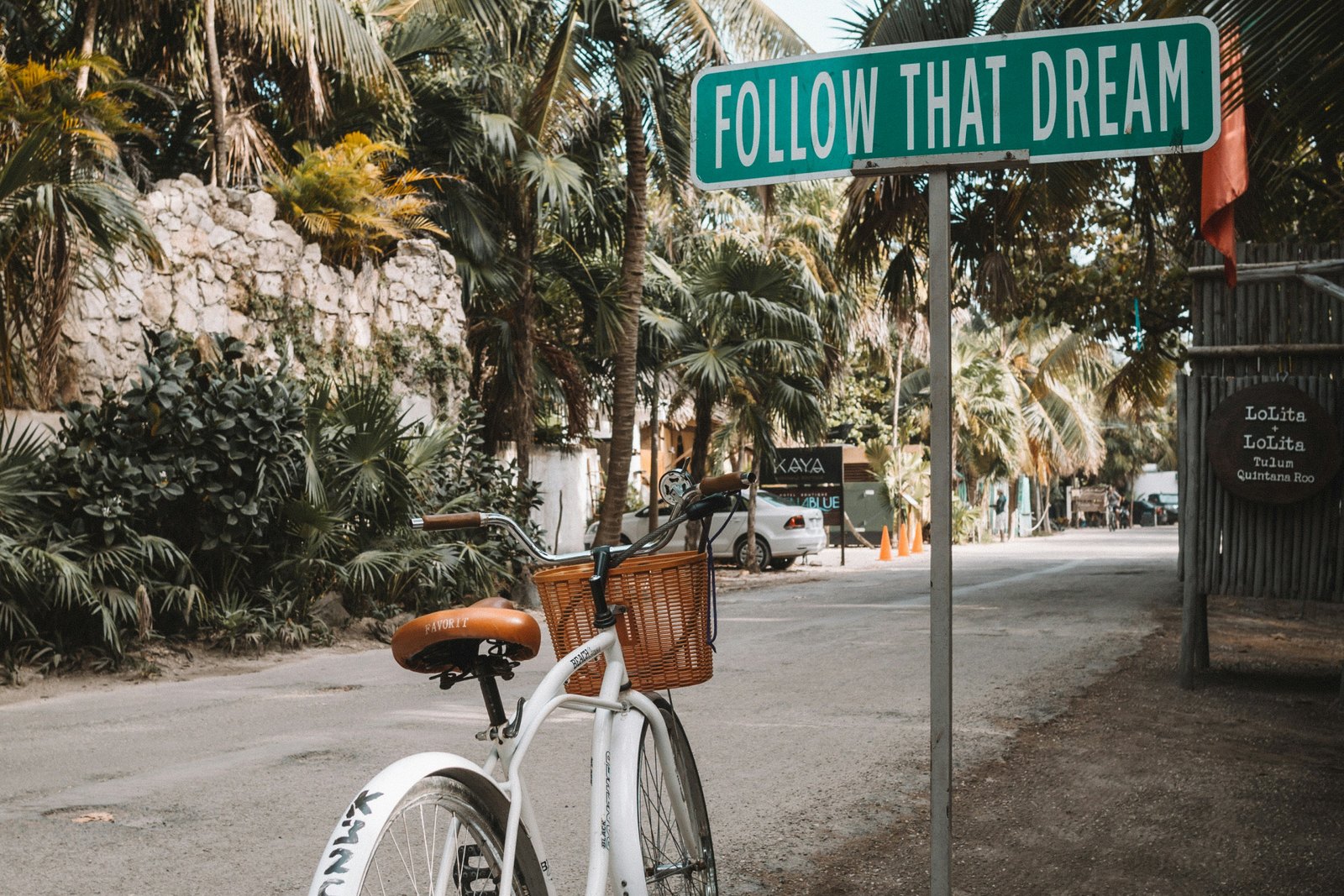
Travel photography has never been more accessible. You can get a decent beginner DSLR at an affordable price or even take photos using your phone. But if you want photos to live in the real world and not just your Instagram feed, you need to think about how they look in print.
Why Travel Photos Look “Soft” When Printed
Your lab’s printer already upsamples for you. Send it a low-resolution file, and the driver interpolates it up to the size you ordered. Nothing should come out “blocky”. What you get instead is softness. Edges lose their sharpness, and fine texture turns to mush.
From six feet back, it’s fine. From two feet, it’s obvious. If you want travel photos to have the same magic as when you took the shot, it has to show up in the details. So, viewing distance decides how much resolution you need.
300ppi became the standard because pixels stop being visible at about 12 inches, but on a large canvas viewed from 4 to 6 feet, 100 to 150ppi looks excellent. So how do you tell which one you have before paying for a 24-inch enlargement?
Test With 4×6 Prints Of 100% Crops
Order 4×6 test prints, but don’t shrink the whole image down to fit them. Shrinking the image to fit a 4×6 frame hides whatever flaw you’re trying to catch. Instead, cut a small section from the full-size file and print it at 4×6.
A 4×6 at 300ppi holds 1200 x 1800 pixels, so select a 1200 x 1800 area of your file and send it off untouched. It comes back at the exact scale that the area will appear in the enlargement. You can try picking the following for testing:
- A section with fine detail
- A soft gradient like the sky
- Edges that should look sharp
Add Pixels to Your Photos With an Image Upscaler
Anything past 2x should be upscaled in stages, with the settings varied slightly between passes.
I’ve printed on 24-inch roll paper for years. Hitting 300ppi across 24 inches means 7,200 pixels on the short side, so a 4,000-pixel file needs most of a 2x, and a heavy crop needs 4x or more.
But if you upscale an image too much, it’ll produce artifacts. Two smaller passes with different settings don’t. It also helps to separate two things people lump together. Plain upscaling adds pixels by interpolation. The better move is to use an AI tool that employs diffusion-based upscaling.
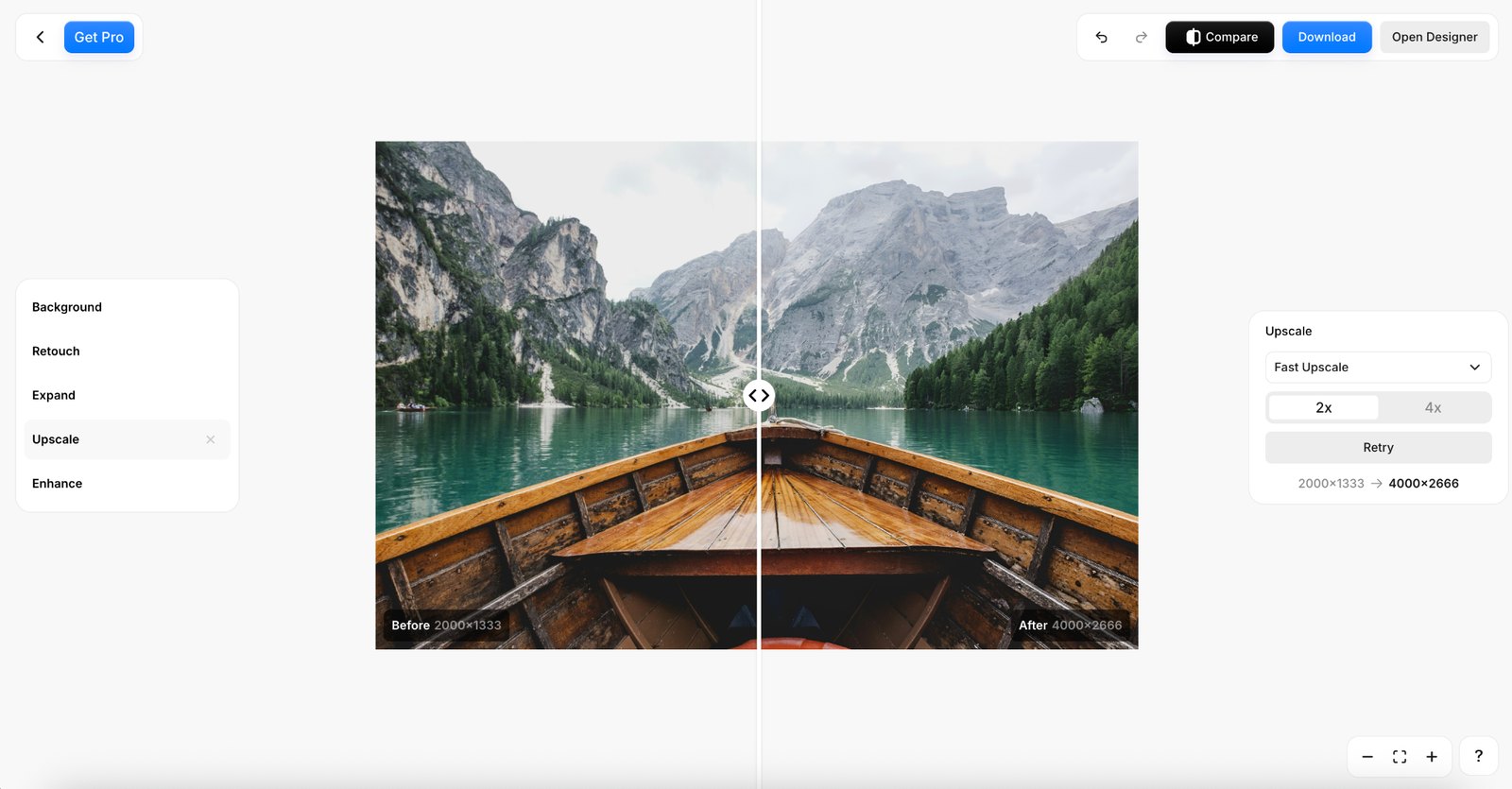
The Pixelcut AI upscaler is perfect for this. It has a Fast Upscale mode that handles straight enlargement, and Creative Upscale runs the Topaz model with the Creativity and Resemblance sliders, so you can hold off on the second pass when it starts inventing too freely.
Face enhancement is available in the Topaz model, with a SeedVR2 option for comparison. Photoshop still earns its place for masking and local control. But make sure to run all of this after your color and exposure edits, then check the result at 100%.
Let Paper, Margin, And Frame Do The Rest
For travel photography, luster or satin are great options if you want low-glare color. Glossy paper makes landscapes pop. Matte cotton rag provides an artistic, fine-art look. So, make sure you think about what type of paper you use for printing.
Then size the print to the photograph. Give it a generous white border, keep the frame simple, and hang the arrangement 57 to 60 inches above the floor.
Key Takeaways
Insufficient resolution doesn’t pixelate your prints, it softens them. Once you know that’s the failure mode, you can test for it cheaply and fix it properly. Here’s a quick recap:
- Resolution is defined by distance: 300ppi at 12” and 100 to 150ppi for large prints.
- Test prints with 4×6 crops of the full photo.
- When upscaling beyond 2x, it’s better to stage it rather than do a single pass.
- Upscale your photo after editing in post.