
I have roughly 140,000 photos sitting on two hard drives and a NAS in my office closet. Some are client work, most are family. For years my “system” was a folder called Sort Later, and I’m a little embarrassed to admit how big that folder got. Last winter I finally sat down and tried a pile of photo organizers on the same messy library to see which ones actually made it easier to find a picture of my kid’s first bike ride without scrolling for twenty minutes.
This isn’t a lab test. It’s what I found after living with each of these on a real, chaotic archive. A few things mattered most to me: can it handle a big library without choking, does face recognition work well enough to trust, do I get to keep my files where I want them, and is there a sane way to get phone photos in without plugging in a cable every week.
1. Tonfotos
Tonfotos ended up being the one I kept open. It’s built for people whose photo library is really a family archive, and you can feel that in how it works. You point it at your folders, drives or NAS and it treats all of them as one collection, arranged by year and date, without dragging your files into some proprietary vault.
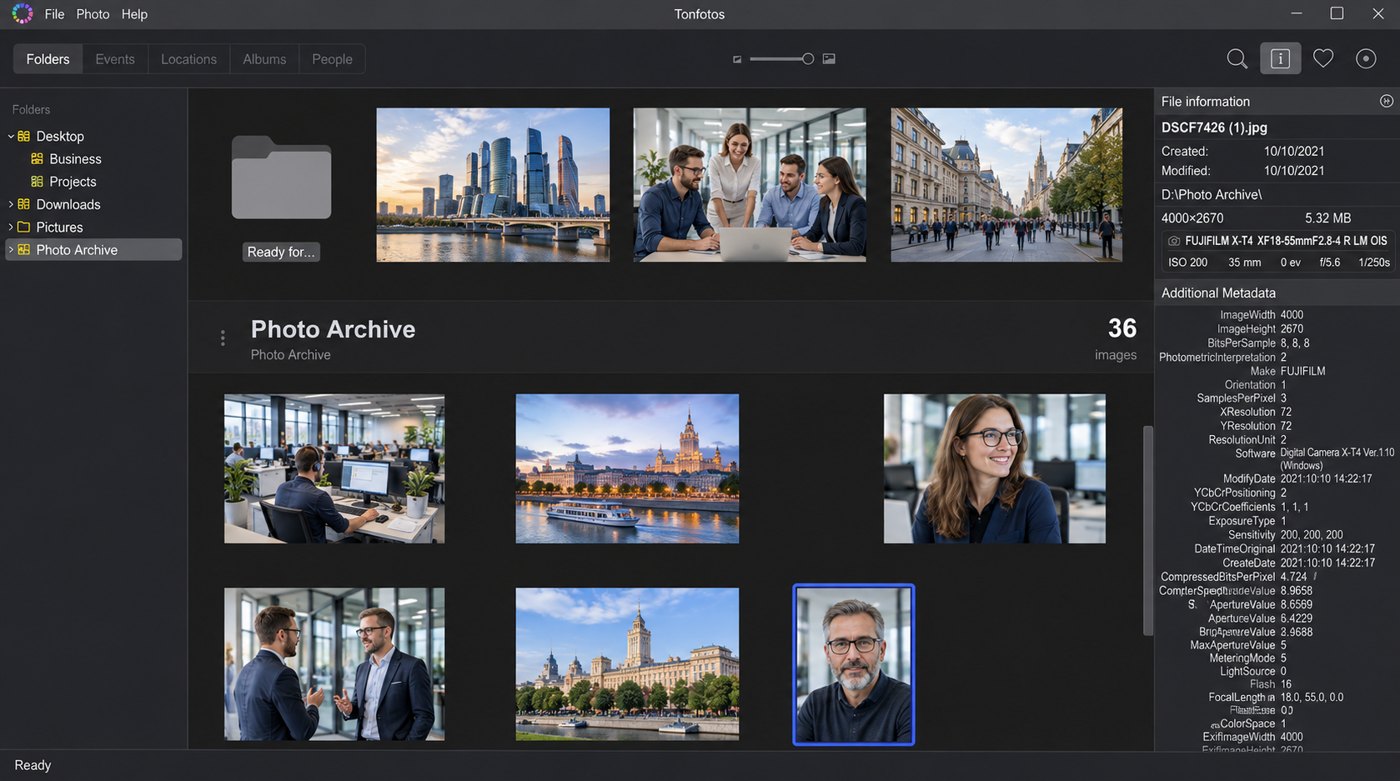
The face recognition is the part that won me over. It found my grandmother in scanned prints from the 1970s and in phone shots from last Thanksgiving, and after I’d tagged a handful of photos it started suggesting new ones on its own. You can also link people together as relatives, and Tonfotos builds a family tree out of that. I didn’t expect to care about that feature and then spent a whole evening filling it in.
It also finds duplicates, which freed up a surprising amount of space on my drives, and search by person, event, tag, date or location is quick. The one-click slideshow is a small thing, but my parents loved it when they visited.
The other piece is TonfotosSync, the companion app for iOS and Android. You pair your phone once with a QR code and new photos land in your archive on your computer or NAS automatically. No cloud subscription, no cable. For me that closed the biggest gap in my workflow, since my phone is where most new family photos come from now.
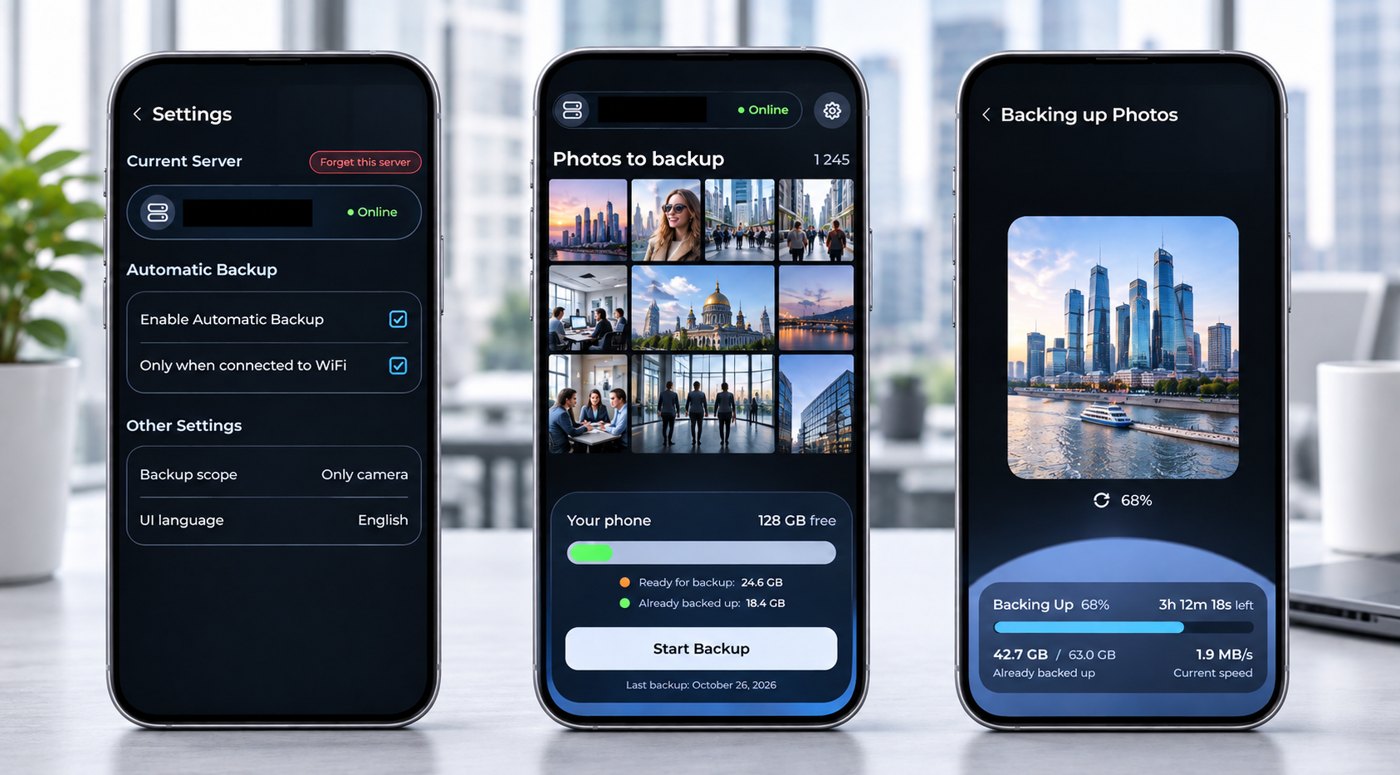
Pricing is refreshingly simple. There’s a free version with full functionality and a limit on how many people you can tag, and paid licenses are one-time purchases rather than a monthly fee (the personal license was $59 when I checked). If you want your photos on your own hardware and you care about the people in them, Tonfotos is where I’d start.
Best for: family archives, big mixed libraries, and anyone who wants to keep files local.
2. Adobe Lightroom Classic
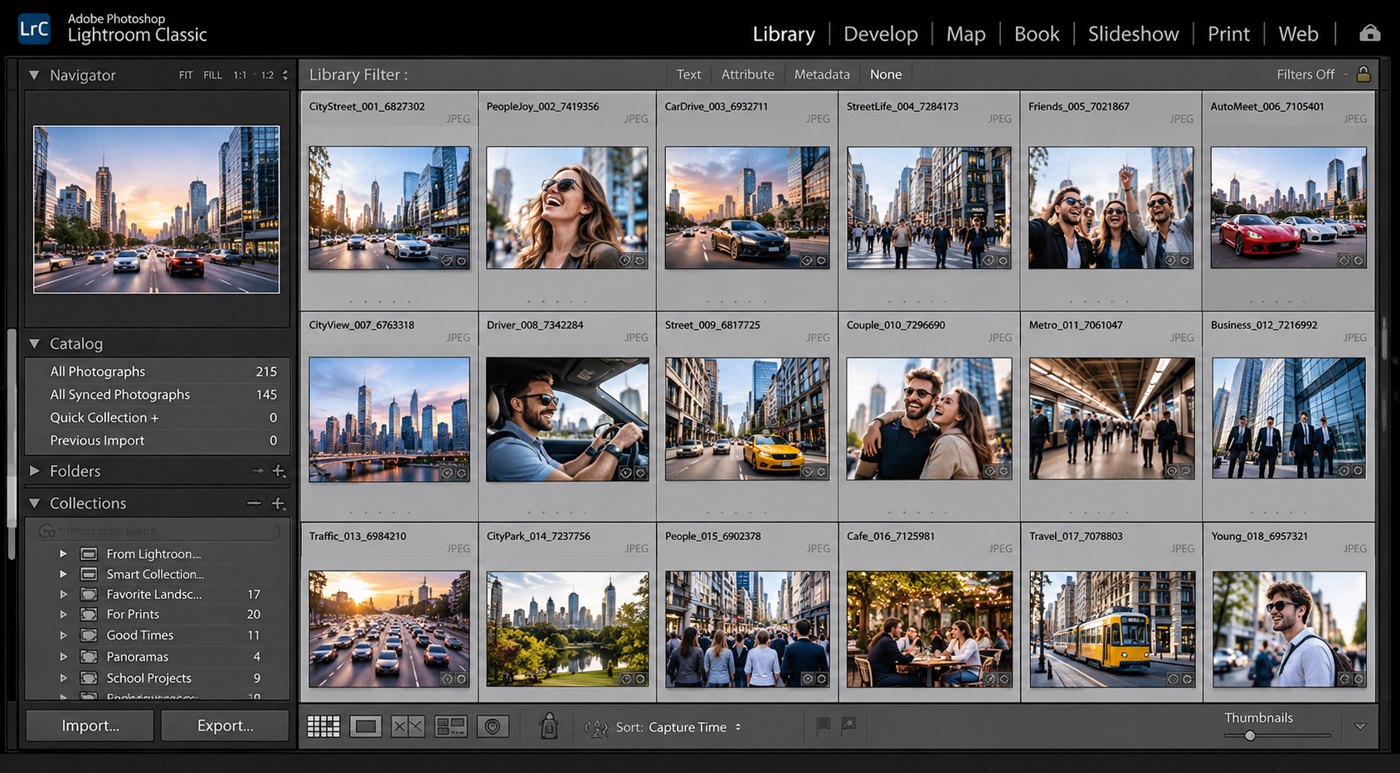
Lightroom Classic is still what I use for client shoots, and its catalog, keywords, collections and star ratings are powerful once you set them up. It has face recognition too. The catch is that it’s really an editing tool with organizing built in, it lives on a Creative Cloud subscription, and a big catalog wants a fast computer. For a working photographer it’s hard to beat. For a family archive it’s more than most people need.
Best for: photographers who edit a lot and already pay for Adobe.
3. digiKam
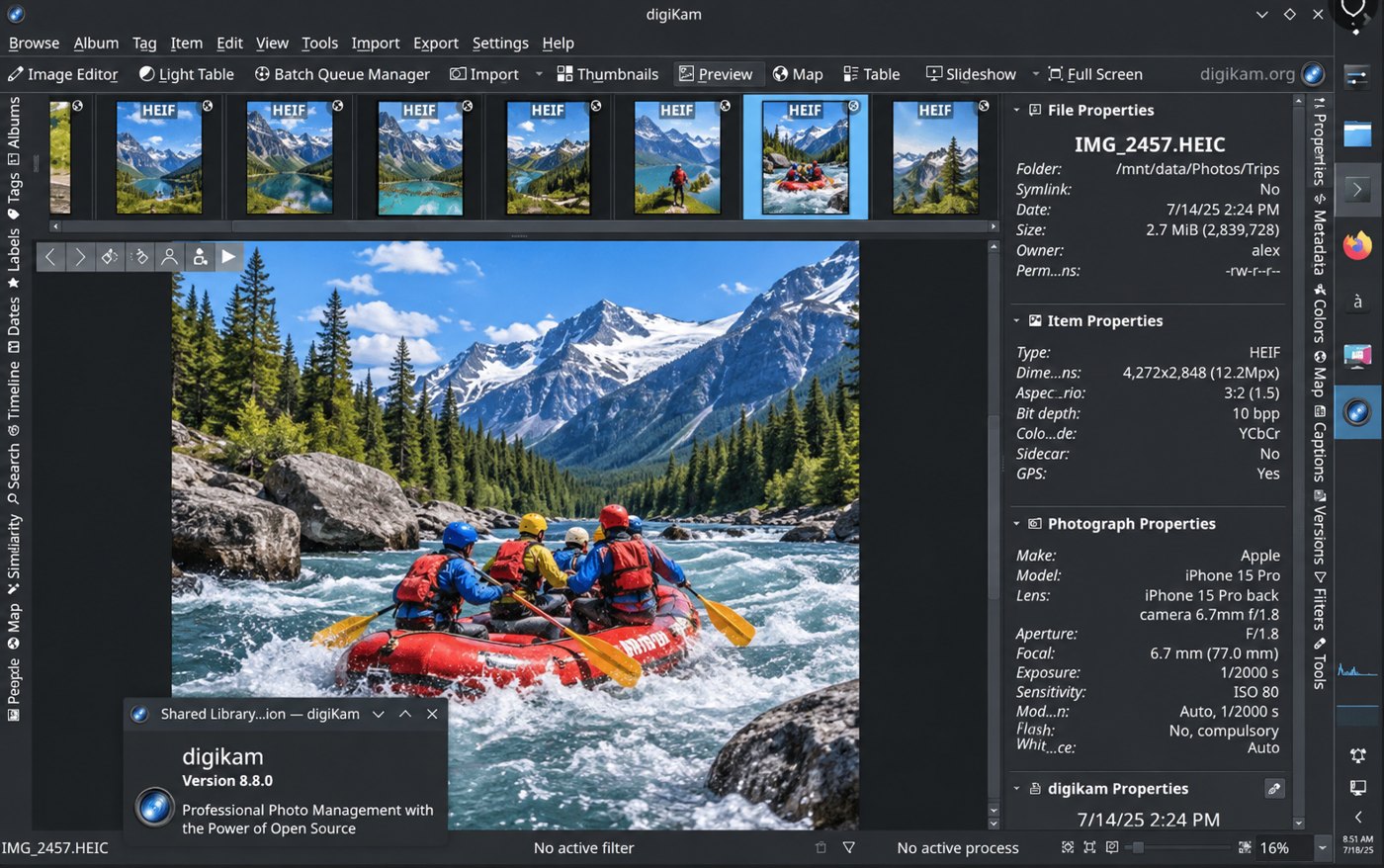
digiKam is free and open source, runs on Windows, Mac and Linux, and is absurdly capable. Tagging, metadata editing, face detection, geolocation, batch tools, it’s all in there. I respect it a lot. The interface, though, feels like a cockpit, and it took me a couple of sessions before I stopped getting lost. If you like tinkering and don’t want to spend a cent, it’s a great pick.
Best for: tinkerers and Linux users on a zero budget.
4. Mylio Photos
Mylio’s big idea is keeping your library synced across your own devices, and it does that well. It pulls in photos from lots of sources and has a nice calendar view. Some of the features I’d want most sit behind its subscription plan, so the long-term cost adds up compared with a one-time license.
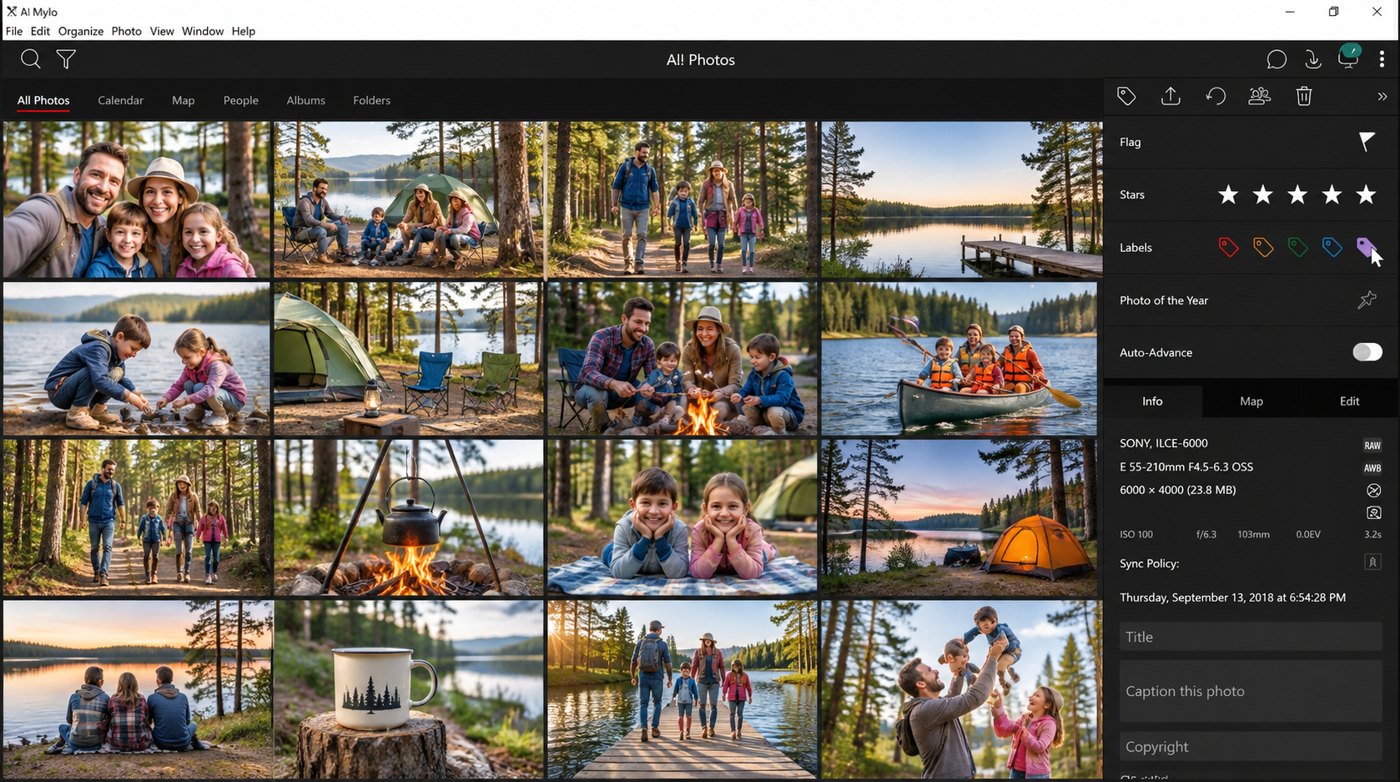
Best for: people juggling several computers and phones who don’t mind a subscription.
5. Google Photos
Google Photos is the easiest of the bunch, and its search is genuinely impressive. Type “beach” or “dog” and it finds them. The trade-off is that your library lives in Google’s cloud, you’re paying for storage once you go past the free tier, and getting a huge archive out again later is a chore. I use it as a backup for my phone, not as my main archive.
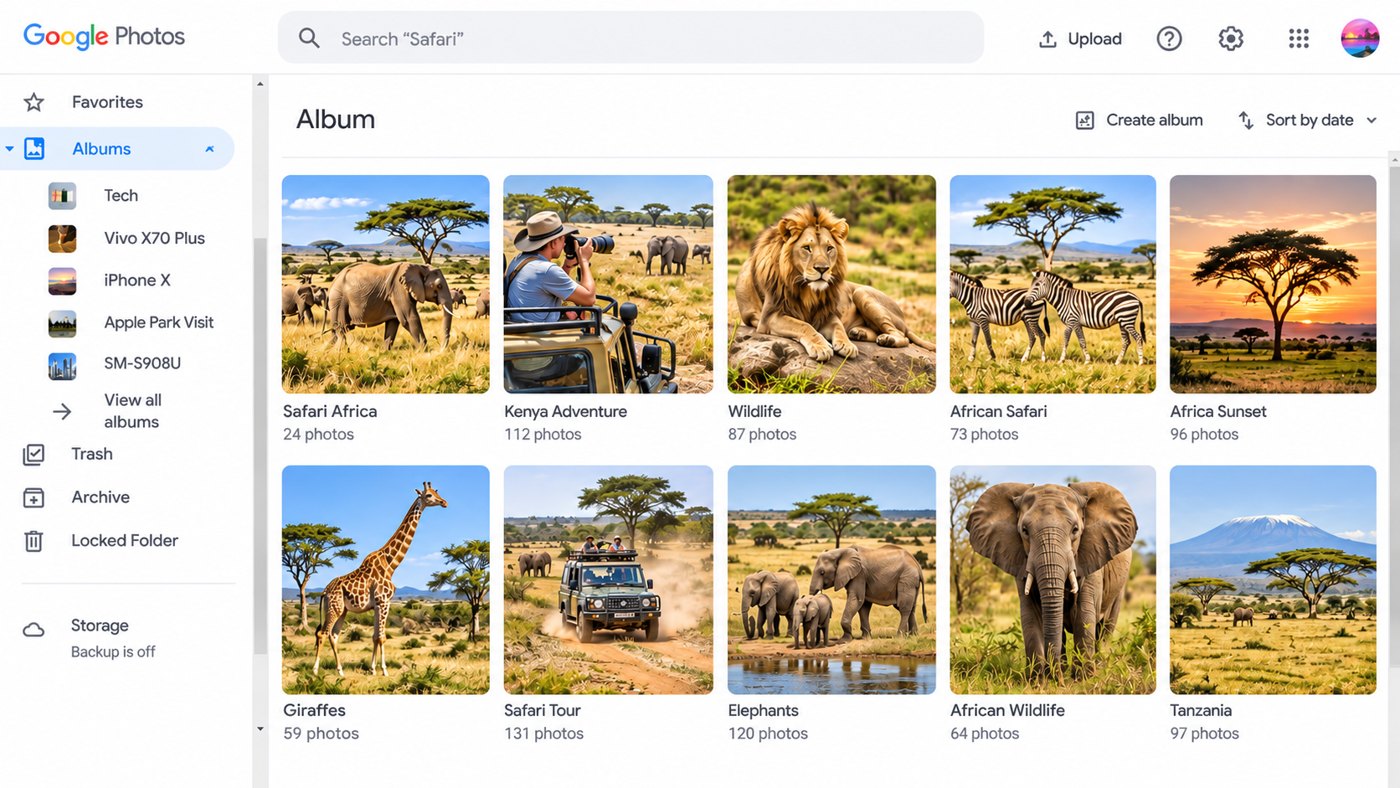
Best for: convenience and phone-first users who are fine with the cloud.
How I’d choose
If you mostly edit, go with Lightroom. If you want free and don’t mind a learning curve, digiKam. If you live in the cloud, Google Photos. But if what you really have is a mountain of family pictures spread across drives and phones, and you want to find the people in them and keep everything on hardware you own, Tonfotos is the one I’d install first. It’s the only one that made my Sort Later folder feel manageable.